> For the complete documentation index, see [llms.txt](https://docs.truedat.io/llms.txt). Markdown versions of documentation pages are available by appending `.md` to page URLs; this page is available as [Markdown](https://docs.truedat.io/v8.9/userguide/catalog.md).
# Data Catalog
This module lets you consult and enrich metadata obtained from your organization's systems. It provides search, filtering, and browsing options through the catalog. It also connects with both the glossary of concepts and the data quality glossary so you can navigate between modules.
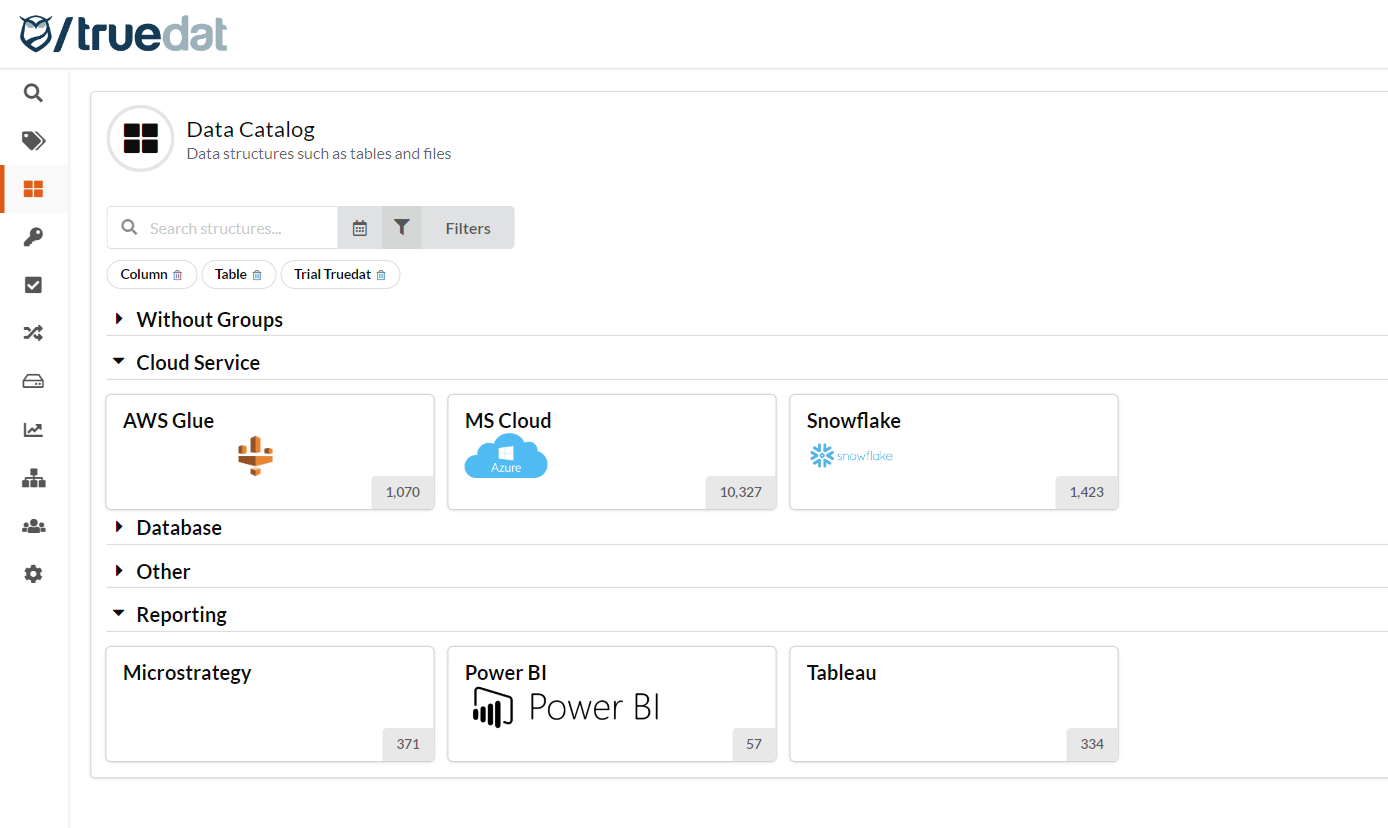
When you access the Catalog, you get a list of available systems. For each system, you can see the volume of imported structures and the count by structure type when you hover over the number.
Systems can be grouped to provide an organized view, and you can collapse or expand each group.
You may also have additional catalog views where structures are grouped by criteria other than system, if your administrator has set them up in your installation. These alternative views appear as additional menu options in the Catalog module.
From here, you have several options to find the structure you want to consult.
* **Discover your system metadata**: Click a system to open a tree-like navigation and browse your metadata. You can also use the search box to filter the current list of structures and quickly find what you need.

* **Filtering**: You can filter using information discovered from the data source and additional information documented in your installation through data catalog templates. To filter by technical metadata fields, an administrator must configure those fields in the [Structure Types](/v8.7/administration/data-catalog-management.md) screen. Some filter examples are *structure type, last changed date, linked business concept, and with or without extra information such as notes or functional metadata*.
* **Search**: You can search across the complete metadata, including manual fields, structure path, and description.
* **Save filters**: Users can save their most frequently used filters. To do this, provide a name for the filter combination. It will then appear as an additional quick filter each time you enter the data catalog.

## **Structures**
When viewing the details of a structure, you can see the following information:
* **Domain**: The data domain or domains the structure belongs to.
* **System**: The metadata repository the information is retrieved from.
* **Imported**: The date when the structure was first included in the catalog.
* **Updated:** The date when the structure information was last modified in the catalog.
Structure and field details may display several tabs, depending on the context.
* **Fields:** Structures composed of fields include a tab that lists them. If a structure has no fields, this tab is not displayed.
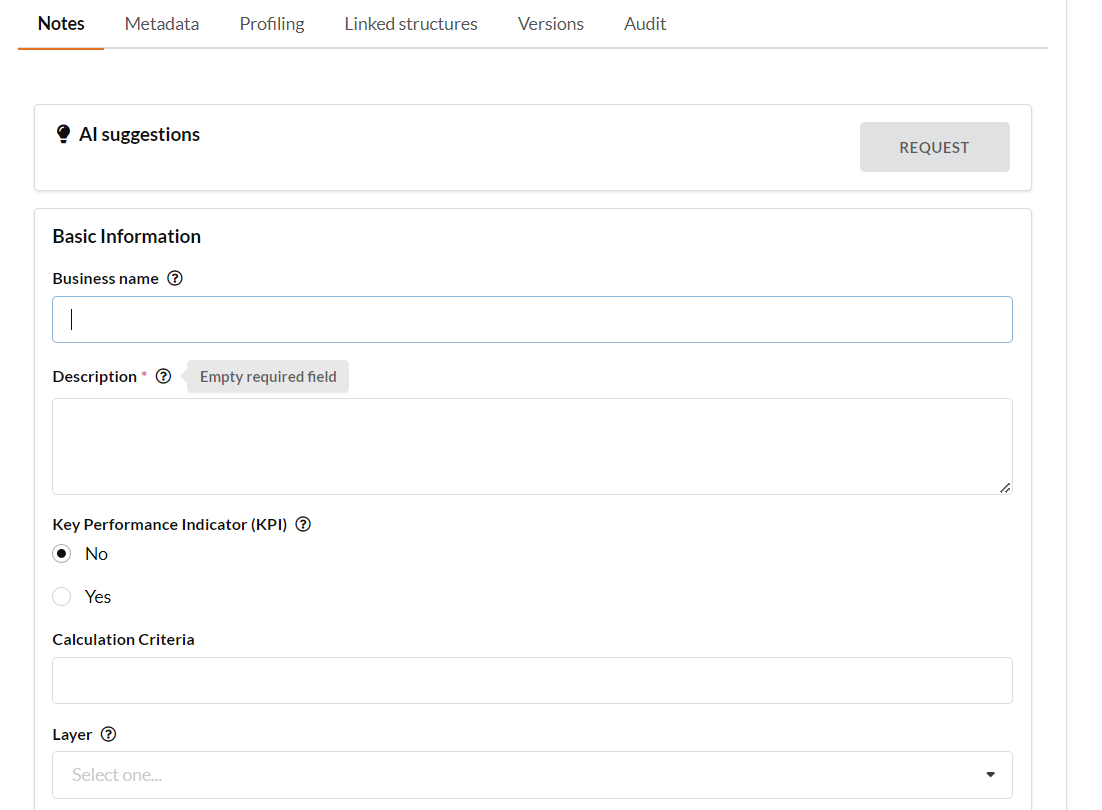
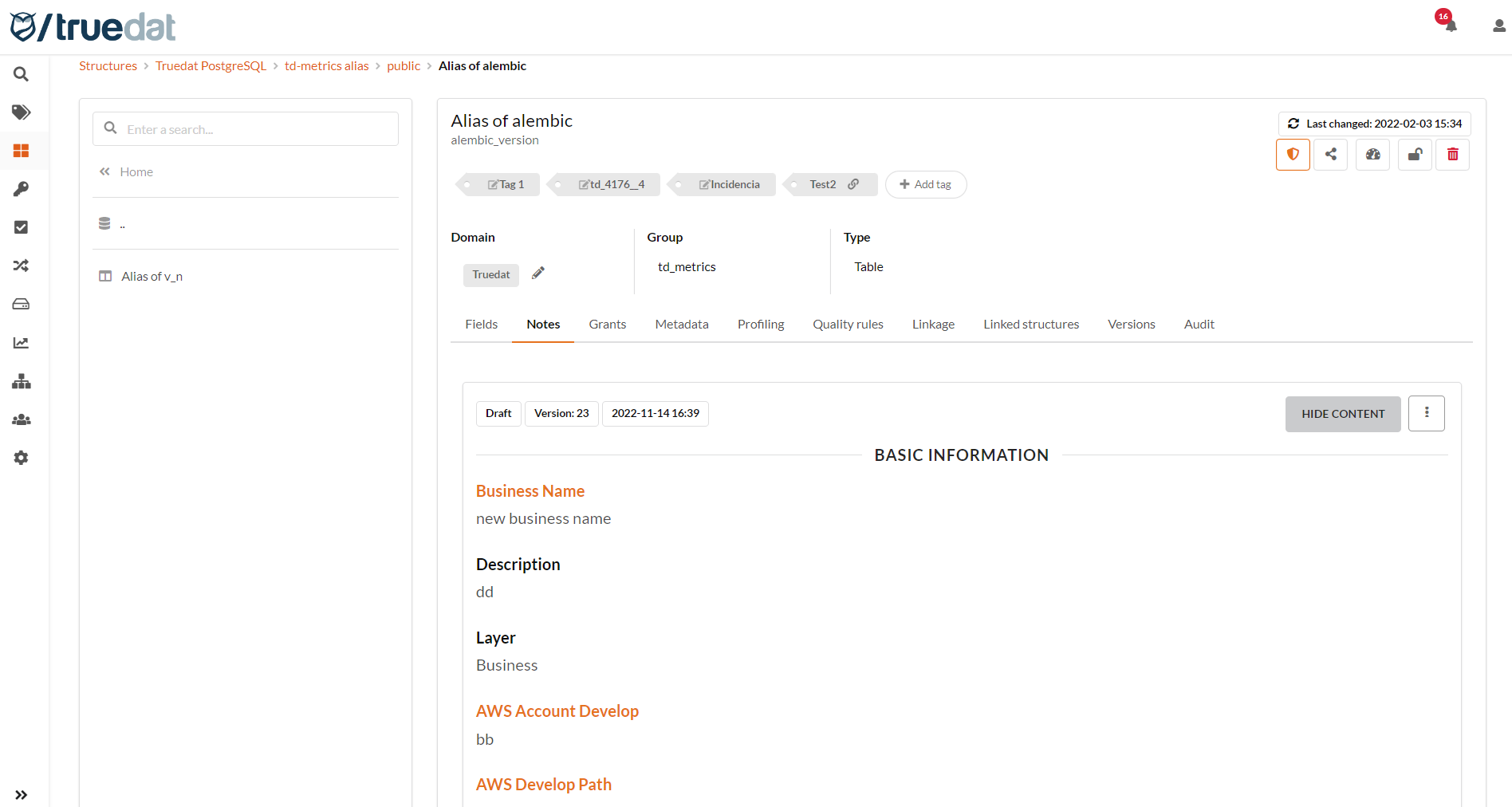
* **Notes:** If the structure type has an associated template, a tab is displayed to manage note information. Notes are manually managed metadata for a data structure. A workflow is available when this information needs review before approval.
* **Grants**: Displays the permissions granted to different users for the corresponding structure.
{% hint style="info" %}
To populate grants, local integration must be included.
{% endhint %}
* **Profiling:** This tab is shown when profiling information is available for the structure's child fields, or when distribution information is available for the structure you are viewing.
* **Quality**: Displays the list of implementations or quality rules that validate the structure you are consulting.
* **Linkage**: This tab is always shown. It displays existing links and lets authorized users create new ones.
* **Versions**: Displays the versions available for the structure and lets you browse them.
* **Audit**: Displays details of all manual changes made to the structure.
### **Domain modification**
When metadata is loaded into Truedat, a domain is assigned by the connector as specified in the [data source](/v8.7/administration/systems.md). In the data catalog, you can reassign the domain of a specific data structure or assign it to more than one domain. This is especially important if you plan to manage different permissions for data structures depending on the data domains they are assigned to. When changing a structure's domain, you can also automatically change the domain of all its children.
Bulk updates are also possible by uploading a CSV file. From the main Data Catalog screen, users with the `Manage Structure Domains` permission can bulk update the domain or domains of several structures by uploading a CSV file. The CSV file must use the following format:
Column headers: `external_id;domain_external_ids`
*external\_id*: the external ID of the structure whose domain or domains will be updated
*domain\_external\_ids*: the external ID of the new domain. If the structure has more than one domain, include them as a pipe-separated list (`|`).
### **Fields**
This section shows a list of the structure's fields, if any. For each field, it shows the field name, links to business concepts, a link to the field's traceability, and other metadata columns that may have been loaded from the system.

From this field listing screen, you can perform the following actions:
* Navigate to a field's details by clicking the field name.
* Navigate to a field's traceability, if traceability is available for that field.
* Navigate to the concept associated with the field, if there is one, in the **Terms** column.
### Notes
Notes are used to record extra metadata in addition to the metadata obtained automatically by connectors. To use this functionality, you must define a [template](/v8.7/administration/templates.md) and assign it to the corresponding [structure type](/v8.7/administration/data-catalog-management.md).
Note creation can go through an approval workflow. Some [permissions](/v8.7/administration/userroles.md) are linked to this functionality and allow users to complete different steps in the process before publishing a note. If you do not need an approval workflow, you can simply set up a permission to publish notes directly and assign it to roles allowed to modify notes.
Users can perform different actions depending on their permissions and the note status, following the workflow used to manage structure notes.


#### AI-powered note generation
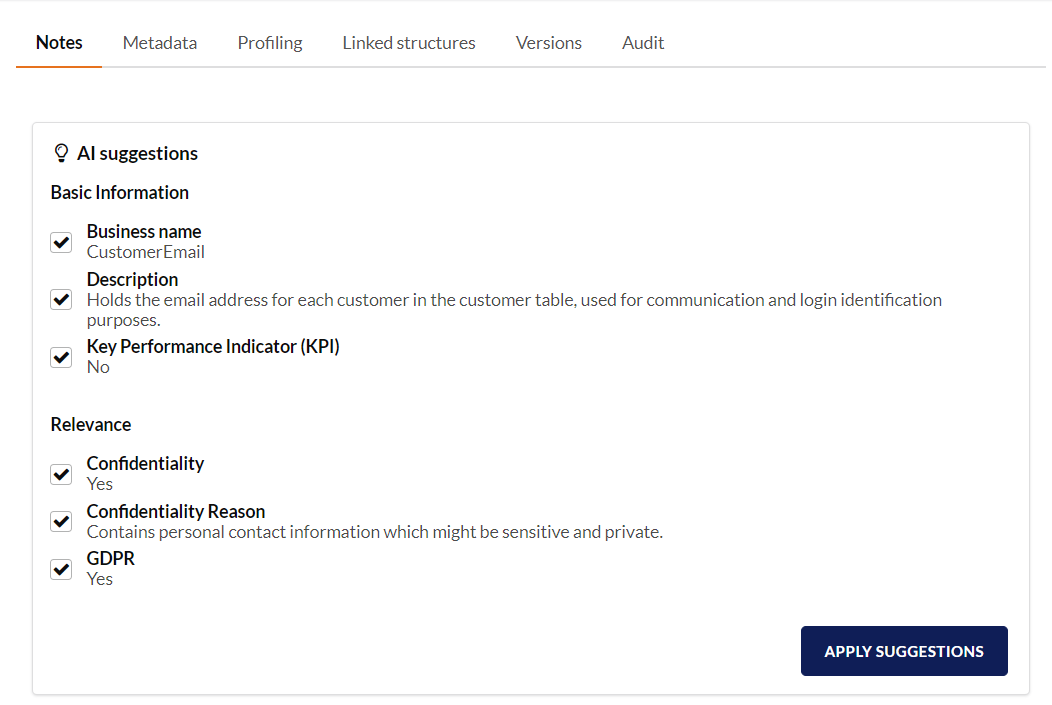
Documenting newly ingested assets from scratch is tedious and time-consuming. You can ask AI to analyze the information available in Truedat, such as technical metadata and data profiles, and automatically draft the note content. You can then review it, amend it if needed, and publish it.
Administrators configure in the note templates which fields can be generated automatically by AI.
To use this functionality, you need a specific permission in addition to the permissions that allow you to create notes.
#### Viewing pending notes
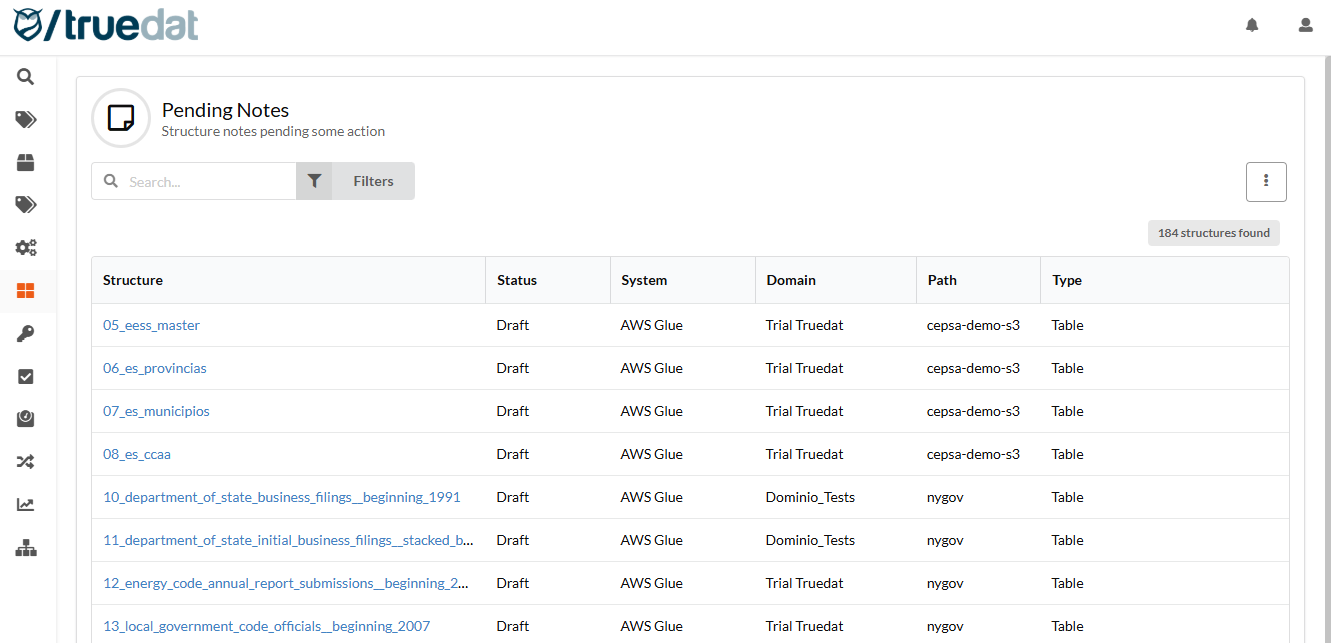
Users with permission to manage notes — edit, send for approval, publish, reject, or un-reject — can view a list of notes pending action from them.
From the list, you can download the notes to an Excel file or navigate to a structure by clicking it and carrying out the relevant action. When reviewing a note, you can easily identify changes from previous versions because they are highlighted in a different color.
#### Notes download
You can download a file with all published note information for structures. This file uses the same format required for uploads, so you can easily update note information in bulk before uploading it again.

#### Bulk load of notes
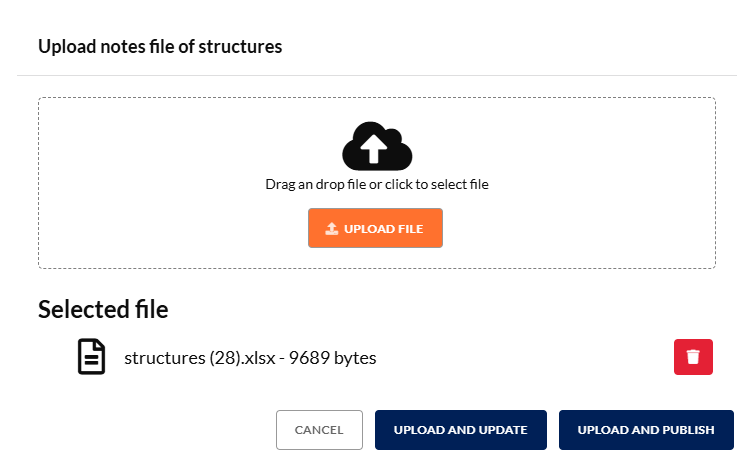
Users with permission to create notes can bulk upload this information from an Excel file. To do this, a template linked to the data structure type to which you want to add information must already be set up in the [Data Structures Type](/v8.7/administration/data-catalog-management.md) menu option.
The uploaded file must be an Excel file with one sheet for each structure type. The sheet name must match the structure type. In each sheet, the first column must be `external_id`, which is mandatory. The remaining columns correspond to the fields defined in the corresponding [template](/v8.7/administration/templates.md), in any order.
You can get the external IDs for your structures by [downloading the list of structures](/v8.7/userguide/catalog.md) from the data catalog screen. You can also download existing notes using the **Download editable structures metadata** option, modify the file by adding notes, and upload it again.
File example:
```
external_id;extended_description;gdpr
glue:/all_glue/default/table_without_columns;This is an example table without any columns;Yes
```
When creating the file to upload, keep the following points in mind:
* Column headers must match a field in the template of the structure being updated. If they do not match, those columns are ignored. If a column is not present in the file, the process ignores that field. It does not update the value if there was a previous note, and it creates the field with no content if needed. If a cell is left blank, that field is updated or created with no content.
* If you include a field that has a list of predefined values in the template, the values in the file must be one of the allowed values. Otherwise, the process fails.
{% hint style="danger" %}
You cannot upload note information for notes that are currently pending approval.
{% endhint %}
When loading the information, you get different options based on your permission level:
* If you can create notes, you get the **Upload notes** option. This creates a new version of the notes in draft status.
* If you have permission to publish notes from draft status, you get the **Upload and publish** option. This creates a new version of the note and publishes it directly, without going through the approval process.
Once you click the upload button, the process starts, and you can see its progress in **Data Catalog → My loads**.

#### Bulk update of notes
Bulk updates of structure notes are possible, but only for admin roles. See [Bulk Updates in Administration](/v8.7/administration/updates.md) for more information.
### **Profiling**
Profiling a structure helps you better understand your data, the structure itself, and the ways it can be used to obtain information within the organization. It also helps you identify data quality issues early. To have profiling information available, the corresponding integration tasks must be completed so that profiling data can be obtained from the relevant systems.
Two types of profiling display are currently available:
#### **Outlined summary of fields in a structure**
The list of fields in the structure that have profiling information is displayed, together with the following information, if available:
* % unique values
* % null values
* Lowest value
* Highest value
* Mode, or most common value
* If a value distribution is available, an icon is displayed that links to the outlined field.

#### **Distribution of values for a field**
If value distribution information is available, the Profiling tab displays a graph with the different values available for that field.

#### **Value patterns**
If pattern information has been loaded using the profiling connector, you can also consult this distribution to better understand your data.
{% hint style="warning" %}
This feature is not available for all data sources.
{% endhint %}

#### **Lineage and impact**
If traceability information is available for the selected structure, **Lineage** and **Impact** tabs are displayed so both diagrams can be viewed quickly. You can also navigate through the graph as explained in the [Data Lineage](https://confluence.bluetab.net/pages/viewpage.action?pageId=14156881) section.
**Lineage:** Shows the origin of the data. What information are you using to generate the data?

**Impact:** Shows which other data structures use the data you are consulting. What would be impacted if you made a change to this data?

#### **Grants**
Using integration components, you can document in Truedat which users have access to certain structures. This allows users to see which structures they have been granted access to.

Users with permission to view a structure's grants get a tab that displays all grants that apply to that structure. This includes grants assigned directly to the structure and grants inherited from any ancestor.

#### **Quality**
This section shows a list of quality implementations that reference the structure you are consulting. It also displays information about the rule each implementation belongs to and provides navigation to both the quality rule and the related implementation. The latest quality result is also displayed, if available.

### **Linkage**
This tab lets you consult and manage the links available for a structure or field.

### **Versions**
If several versions are loaded in the application, you can navigate between them. This version navigation lets you consult the fields that made up the structure in previous versions.

When consulting previous versions, you will see which fields in the structure have changed compared with the current version. Fields are marked when they have been deleted or modified.

### **Audit**
The data structure audit shows all manual actions carried out on those structures. You can review the changes made to the additional information of each structure, as well as the people who made those changes.

### Structure confidentiality
Users with the appropriate permissions can mark a structure as confidential. A structure marked as confidential is visible only to people who have permission to manage confidential structures and view confidential structures in the domain where the structure is located. If you do not want to use this functionality, do not enable the permission in any defined role.

## **Structure tagging**
If your administrator has [created structure tags](/v8.7/administration/data-catalog-management.md#data-structures-tags) and [assigned permissions](/v8.7/administration/userroles.md#data-dictionary-data-catalog) to you, you can link a tag to a structure and add comments explaining why the tag was assigned.
A tag can be assigned to all underlying structures by selecting **Inherited by children**.

Once a tag has been linked to a structure, any user with permission to view that structure can also see the tag, description, and comments by hovering over the tag.

## **Sharing structures**
You can share your structures with others using the corresponding action in the upper-right corner of the structure information. This sends a notification and an email to the users specified in the form.
{% hint style="info" %}
You need to include SMTP server configuration in your installation to receive email notifications.
{% endhint %}

## **Catalog information export**
After performing any search or filtering within the data catalog, you can export the metadata contained in the catalog in CSV format so it can be processed in a spreadsheet application such as Excel.