> For the complete documentation index, see [llms.txt](https://docs.truedat.io/llms.txt). Markdown versions of documentation pages are available by appending `.md` to page URLs; this page is available as [Markdown](https://docs.truedat.io/v8.9/administration/taxonomy.md).
# Taxonomy and role assignment
This section lets you create a taxonomy that defines the domains used to classify information in the application. The taxonomy also lets you manage user permissions, which are assigned at the domain level.
## Taxonomy
Only users with administrator permissions can create root data domains. From the root level, users can assign taxonomy management roles to others. This lets them create multiple domains and assign a manager to each domain.
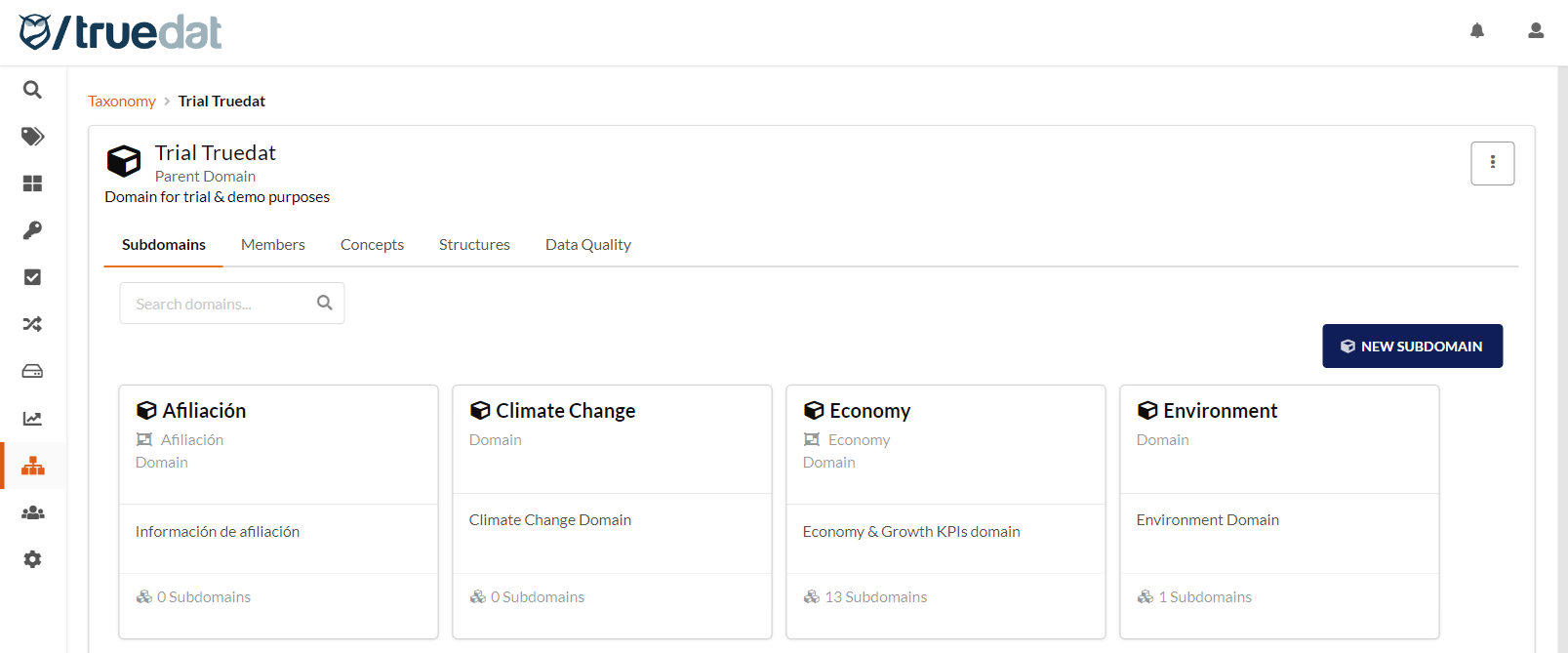
On the initial screen, you can search for a domain or navigate to the domain you want to manage.
On the main screen, you can search for an existing domain. You can also create a domain as a child of the domain you are viewing. From the main screen, the creation button creates a new root domain.

Depending on your permissions, you can register a new child domain, or subdomain, while viewing a domain. Provide the following information:
* Name: The domain name must be unique within the application. Unique names support a common language across the organization.
* External ID: Provide an external identifier. Use it to identify a domain when multiple domains share the same name. Connectors must send this identifier to identify a domain.
* Group: Assign the domain to a group to manage a multi-organization installation. Concept names must be unique within a group. Groups are inherited, so child domains use the same group unless specified otherwise.
* Type: This optional field distinguishes domain types when browsing the taxonomy. For example: Entity, Department, or Functional scope. If left empty, the displayed type is "Domain".
* Description: Add a short description that explains the data domain's purpose.
You can edit an existing domain by modifying the same registration fields. If you have permission, you can also modify the parent domain. This lets you move a domain, including its subdomains and concepts, within the taxonomy.
You can also delete a domain, subject to the following restrictions. You cannot delete a domain if:
* An active concept is registered in the domain.
* The domain has child domains.
* 
## Role assignment
Each domain has a **Roles** tab where you can view and manage user roles.
The **Roles** tab lists users with roles in the selected domain. If you have permission, you can add, delete, or modify user roles in that domain.
## 
If you have the required permissions, you can assign one or more roles to a user in a domain. This grants the role permissions for that domain and all its descendants. Provide the following information:
* Member: The user to whom the role applies. The user must already exist in the application. If a directory service is integrated, the user must log in once before appearing in the selectable users list.
* Role: Select the role to apply to the user in this domain.
* Description: Optionally, add a description to clarify the user's role. This is for informational purposes only.
After a user role is registered, the user must log in again for changes to apply. If the user is currently logged in, changes apply after they log out and log back in.
## Concepts
The **Concepts** tab lists all concepts assigned to the domain. You can navigate to each concept's details in the Business Glossary.
## Structures
The **Structures** tab lists all data structures that belong to the domain. You can navigate to each structure's details in the Data Catalog.
## Data Quality
The **Data Quality** tab lists all implementations assigned to the domain. You can navigate to each implementation's details in the Data Quality module.