> For the complete documentation index, see [llms.txt](https://docs.truedat.io/llms.txt). Markdown versions of documentation pages are available by appending `.md` to page URLs; this page is available as [Markdown](https://docs.truedat.io/v8.8/administration/language-management.md).
# Language management
## Set up new languages
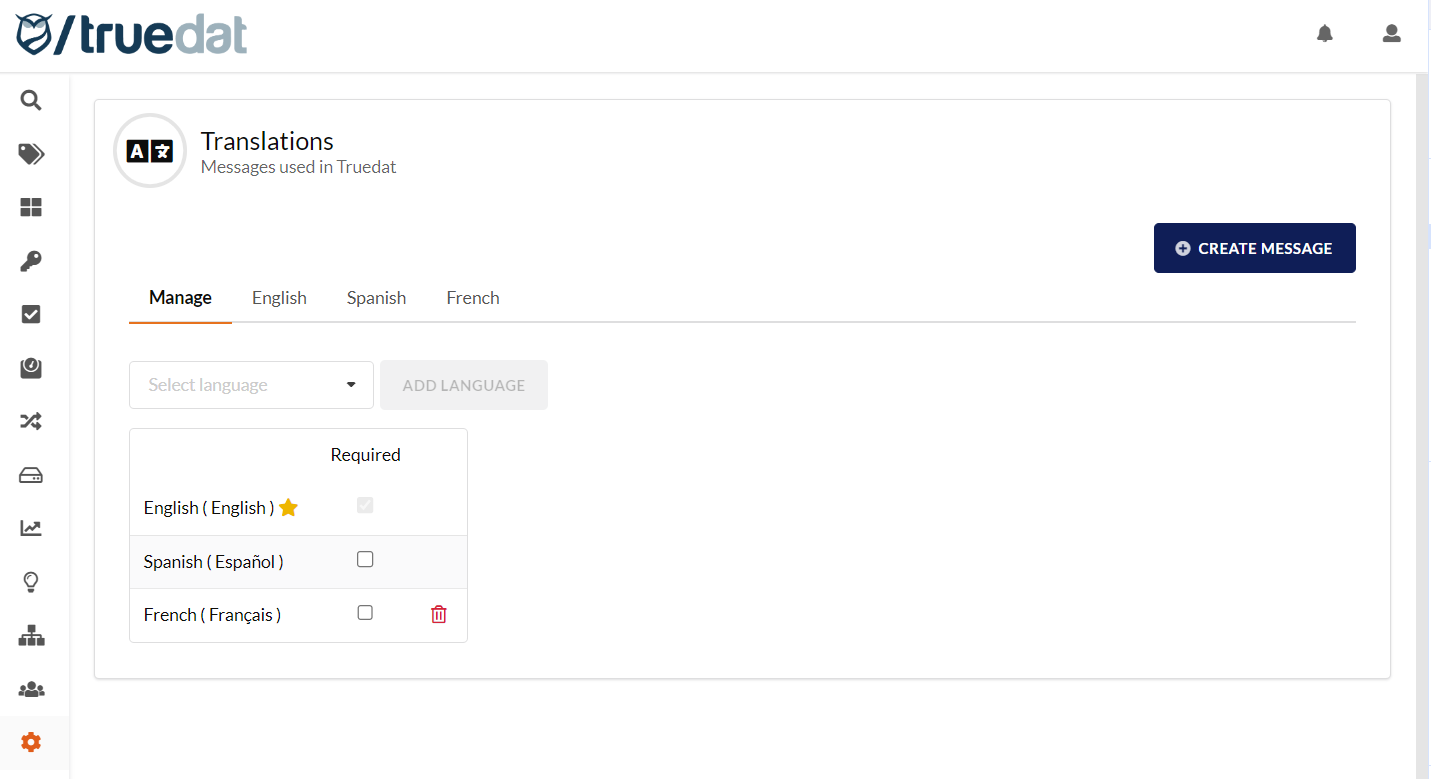
Truedat is available in English and Spanish by default. You can also set up other languages. To do so, go to **Administration** → **Translations/Languages** → **Manage**.
When you add a language, all messages and texts are copied from the default language. Update them with translations for the new language.
Truedat displays text in the user's browser language. If that language is not configured, it uses the default language.
## Customise texts
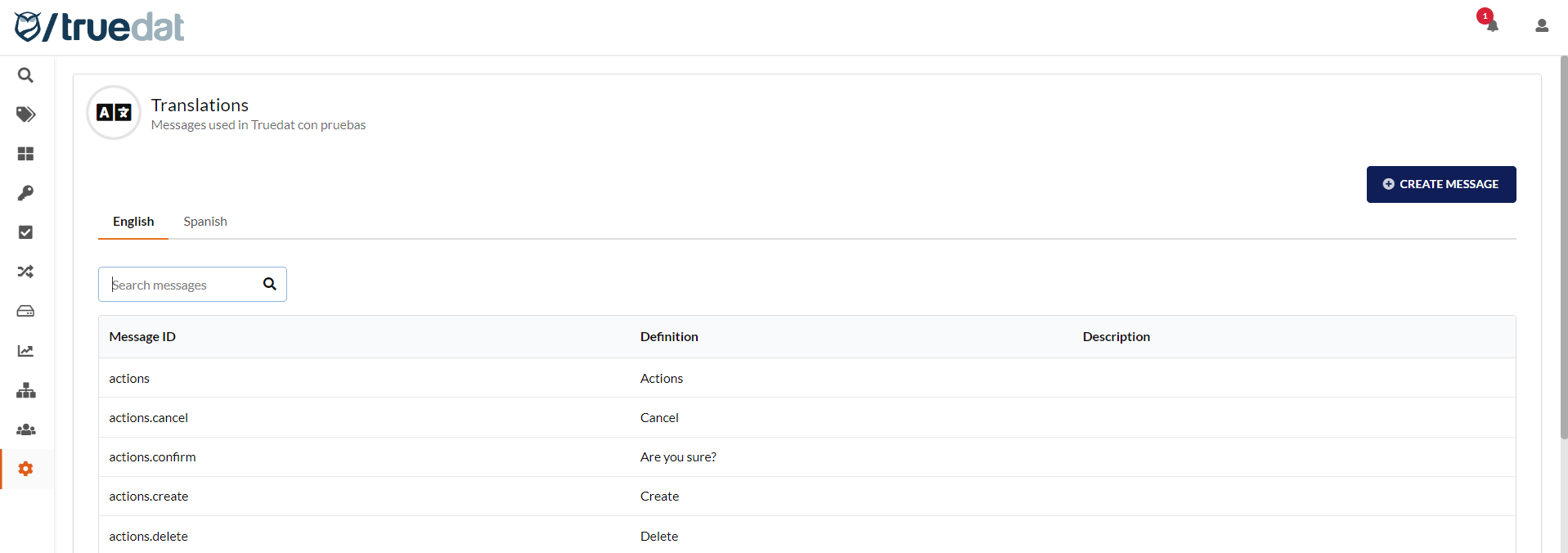
As an administrator, you can customise most text in Truedat. This includes menu options, labels, messages, and icons. Go to **Administration** → **Translations** to view all customisable text in the available languages.
### Modify an existing text
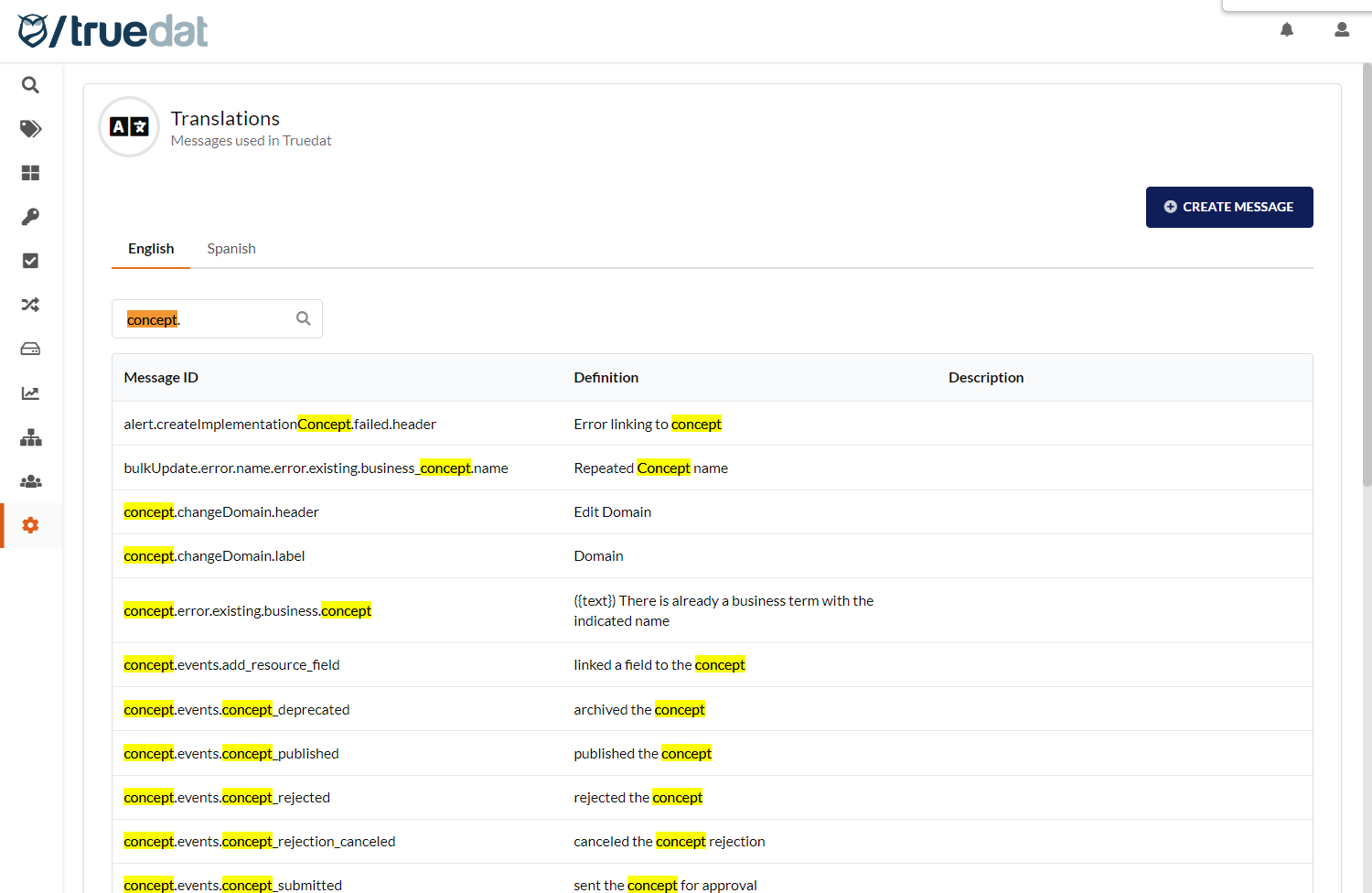
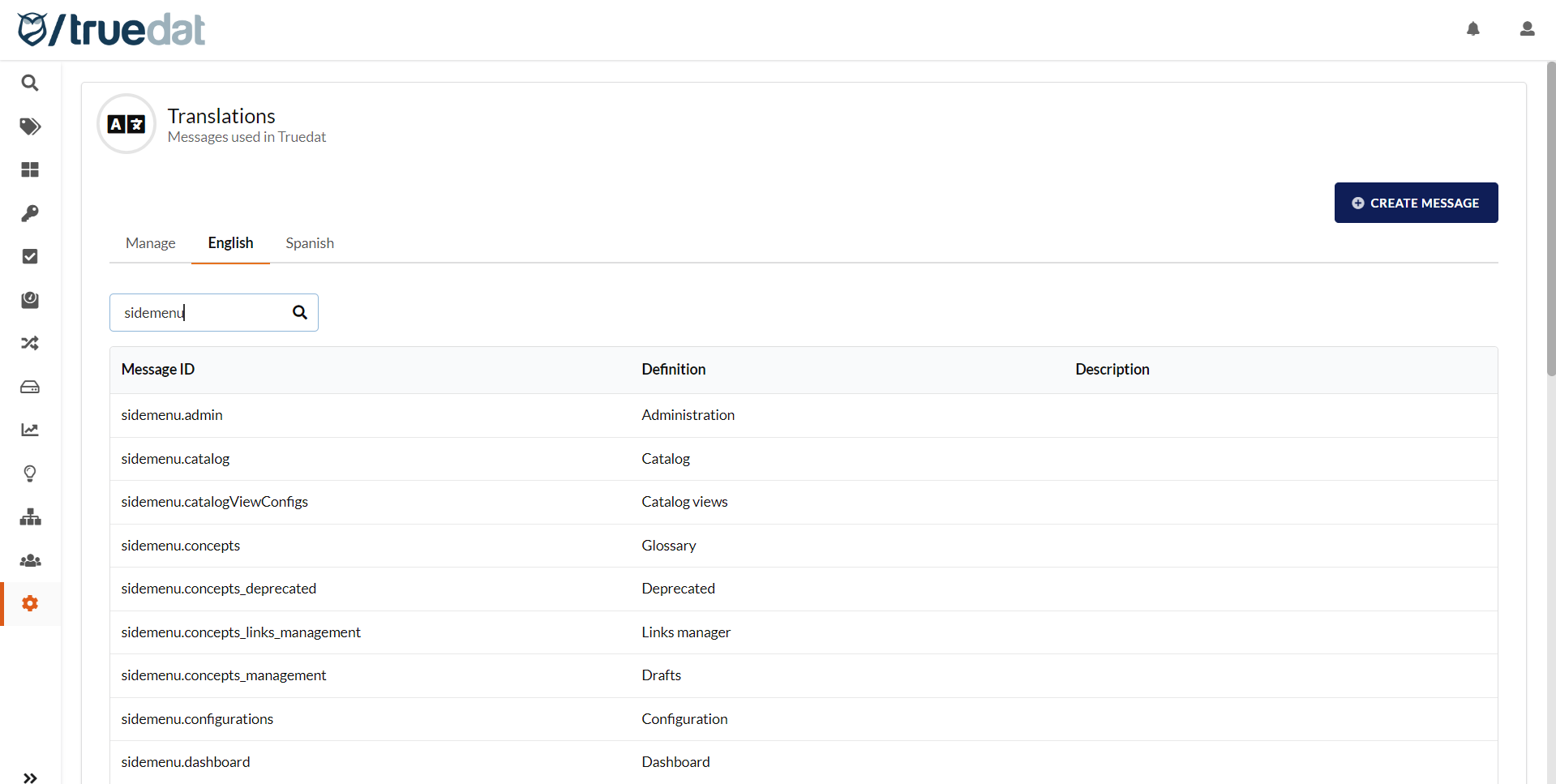
To modify existing text, find it using the search box. Select the **Definition** and edit it. You can add a description or note for the message. Changes apply immediately and appear on the website. For example, change “concept” to “term” by searching for “concept”. Then update the definitions in the results.
### Create a new text
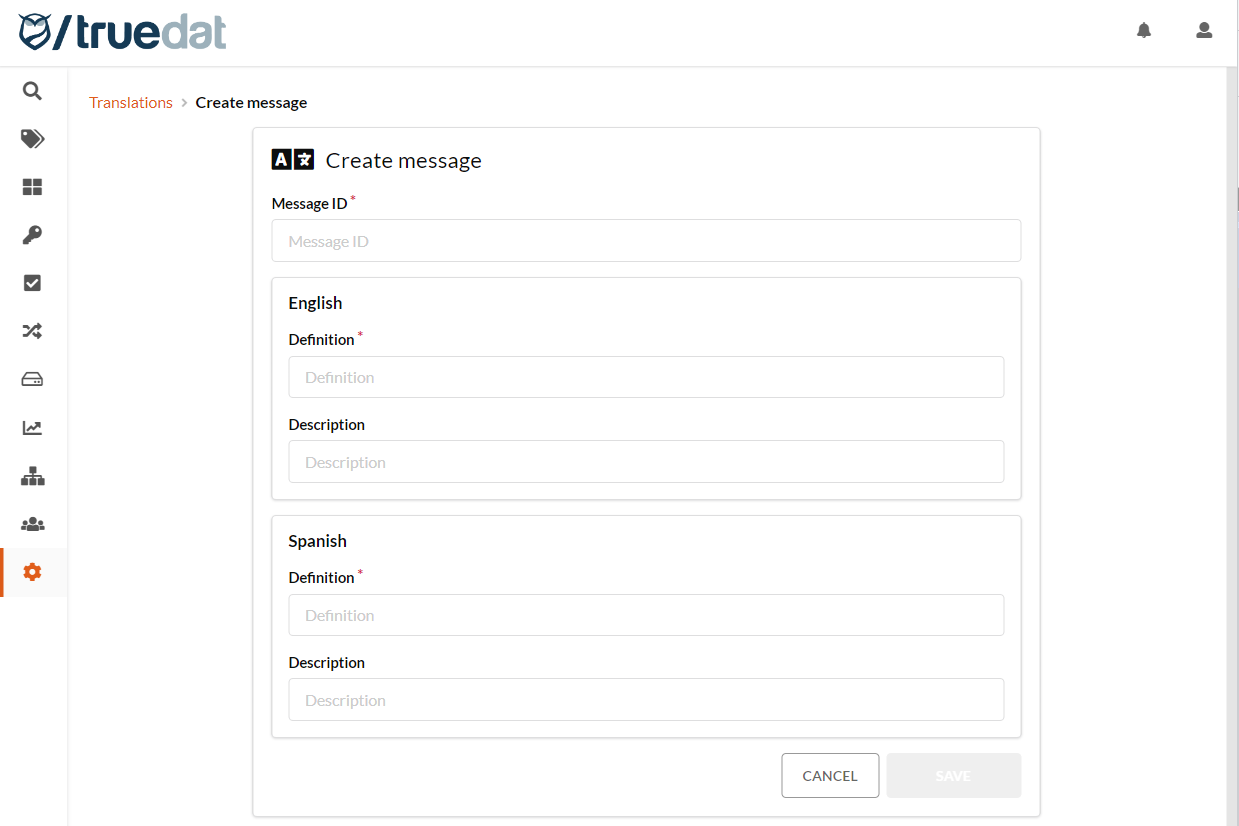
To create text, select **Create Message**. Complete the form with the Message ID, text for each language, and an optional description or note.
### Customise menu texts
The menu texts can be customised as follows:
The Message ID follows this pattern: "sidemenu.*\[name of the menu option]*". Search for “sidemenu”, then update the **Definition** for the menu option.
### Customise menu icons
The menu icons can be customised as follows:
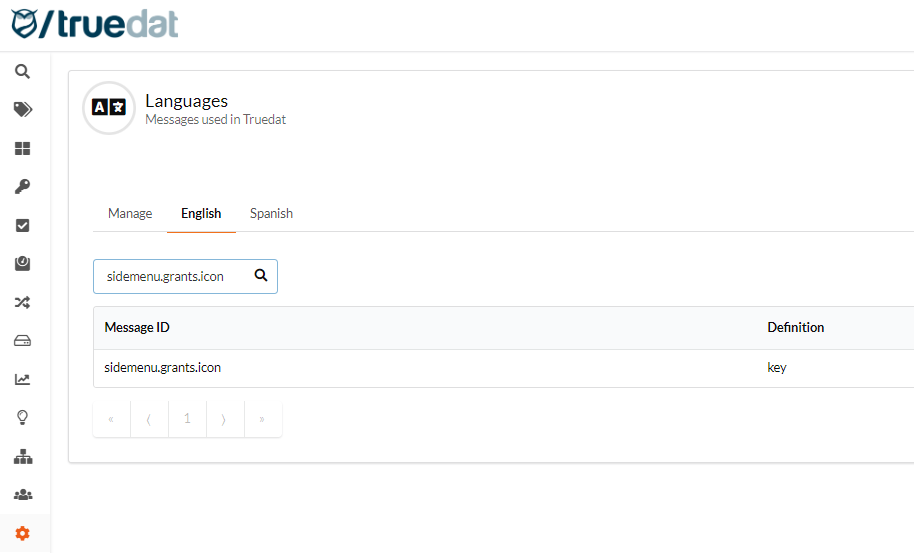
The Message ID follows this pattern: "sidemenu.*\[name of the menu option].*icon".
* sidemenu.admin.icon
* sidemenu.ai.icon
* sidemenu.catalog.icon
* sidemenu.dashboards.icon
* sidemenu.glossary.icon
* sidemenu.grants.icon
* sidemenu.ingest.icon
* sidemenu.lineage.icon
* sidemenu.members.icon
* sidemenu.quality.icon
* sidemenu.qx.icon
* sidemenu.search.icon
* sidemenu.taxonomy.icon
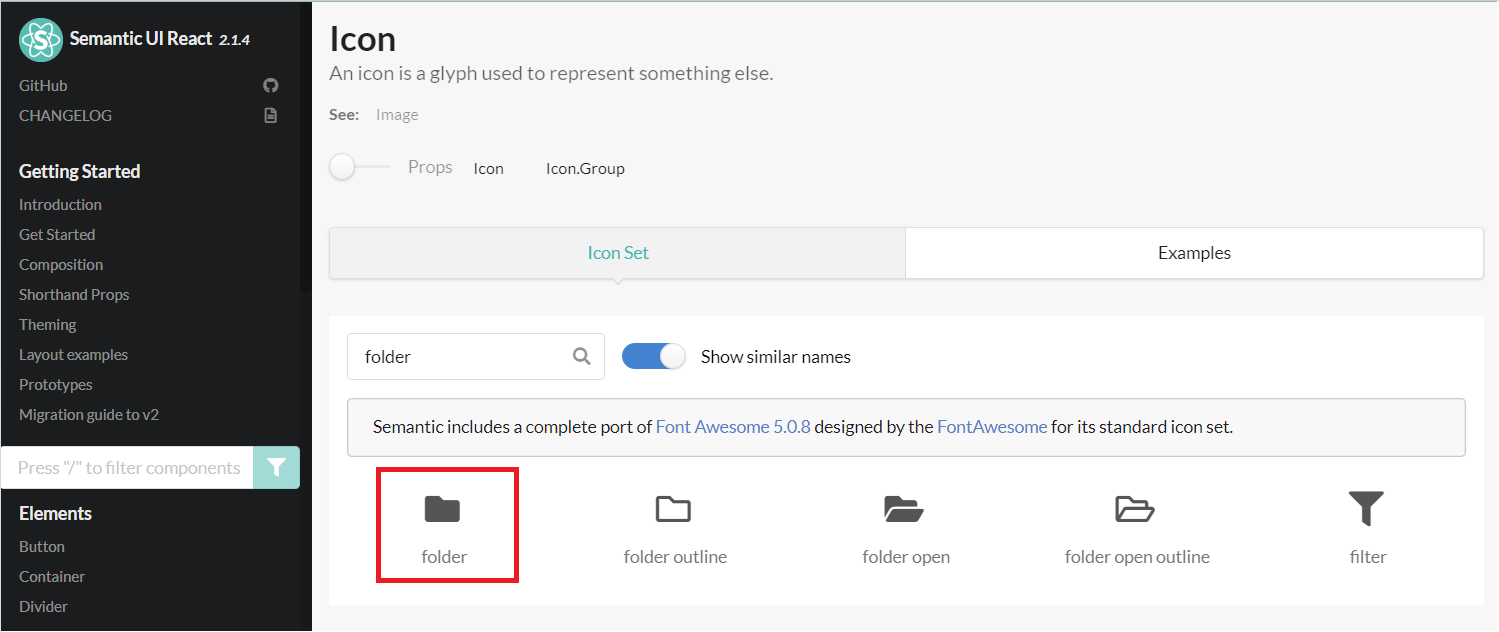
The **Definition** contains the icon name. Choose an icon from [Semantic UI React](https://react.semantic-ui.com/elements/icon/).
### Customise page header icons
The page header icons can be customised as follows:
The Message ID follows this pattern: "*\[name of the page].*header*.*icon".
* Glossary pages:
* concepts.header.icon
* conceptsUpload.header.icon
* domains.header.icon
* Data Catalog pages:
* structureType.header.icon
* structureTypes.header.icon
* bulkUploadEvents.header.icon
* grant.header.icon
* structuresGrant.header.icon
* referenceDatasets.header.icon
* pendingStructureNotes.header.icon
* tag.header.icon
* tags.header.icon
* lineage.events.header.icon
* task.header.icon
* Data Quality pages:
* implementations.header.icon
* quality.header.icon
* Task automation pages:
* ai.actions.header.icon
* ai\_sandbox.header.icon
* prompts.header.icon
* providers.header.icon
* resourceMappings.header.icon
* Members pages:
* group.header.icon
* role.header.icon
* roles.header.icon
* user.password.header.icon
* users.header.icon
* Administration pages:
* templates.header.icon
* hierarchies.header.icon
* relationTags.header.icon
* i18n.header.icon
* elastic\_index.header.icon
* subscriptions.header.icon
* configurations.header.icon
* jobs.header.icon
* sources.header.icon
### Customise filter fields
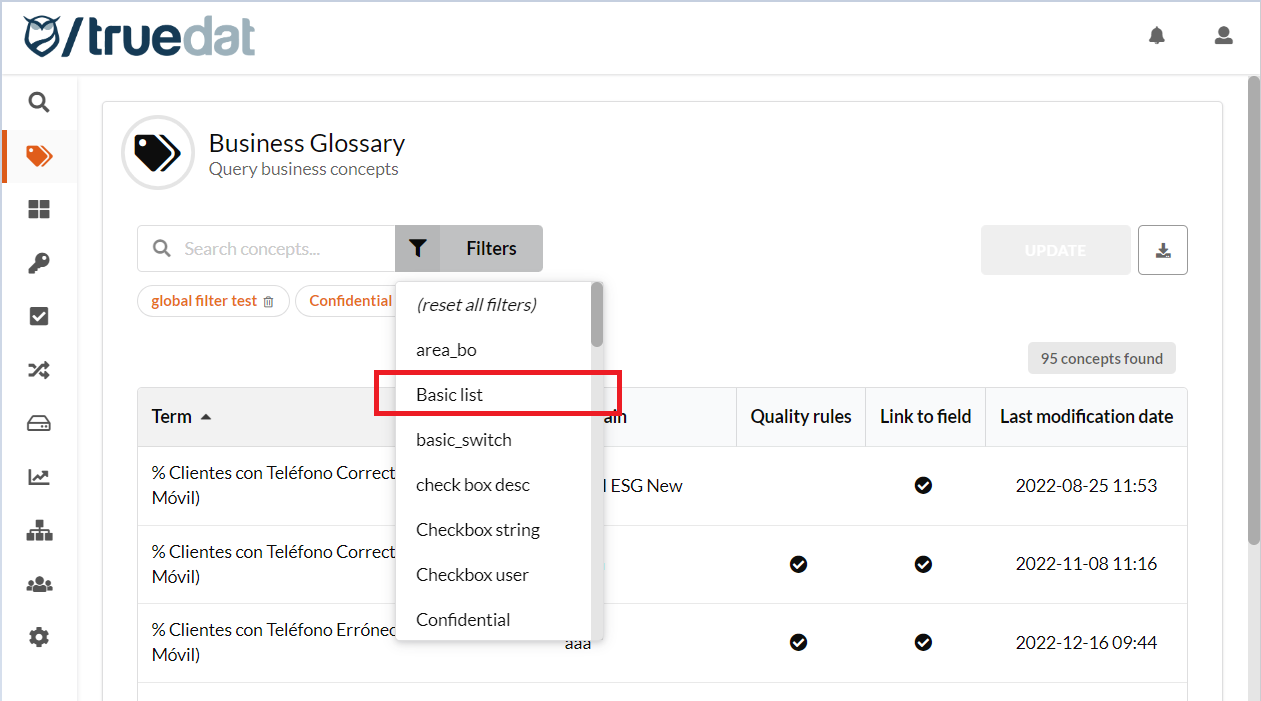
You can use template fields to filter searches. By default, each filter displays its template field name. To display more meaningful text, create a message with the appropriate text.
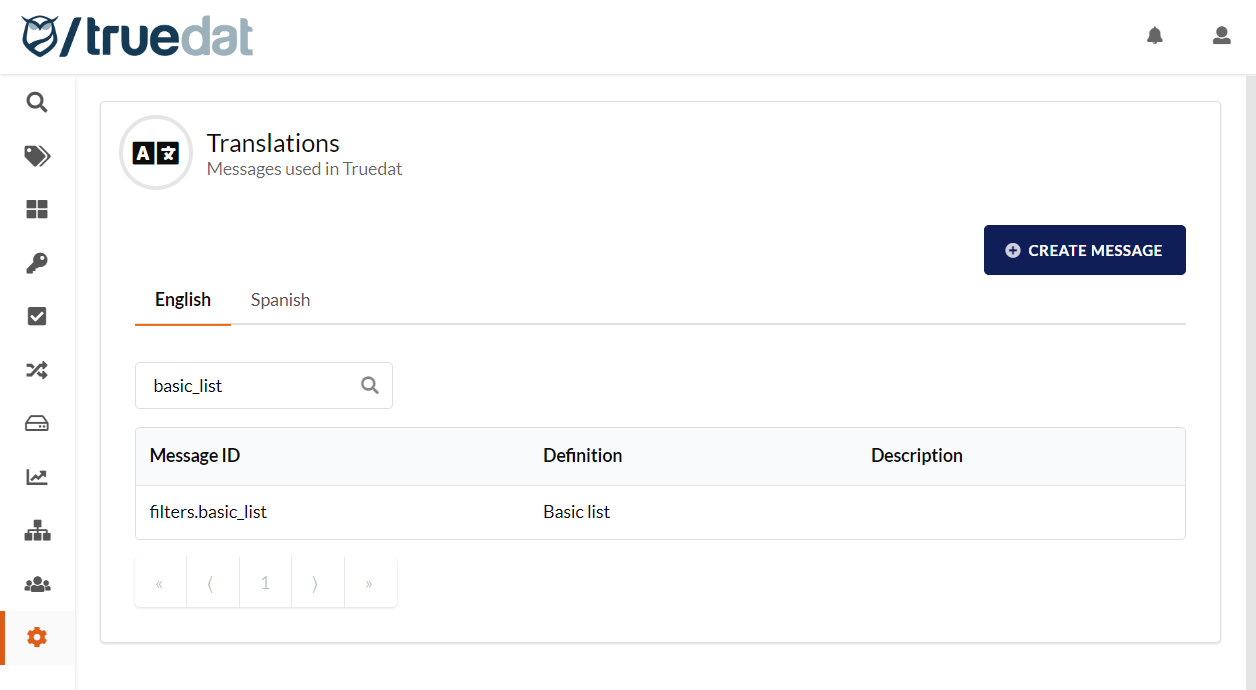
The Message ID follows this pattern: filters.*\[name of the field in the template]*
The **Definition** contains the displayed text.
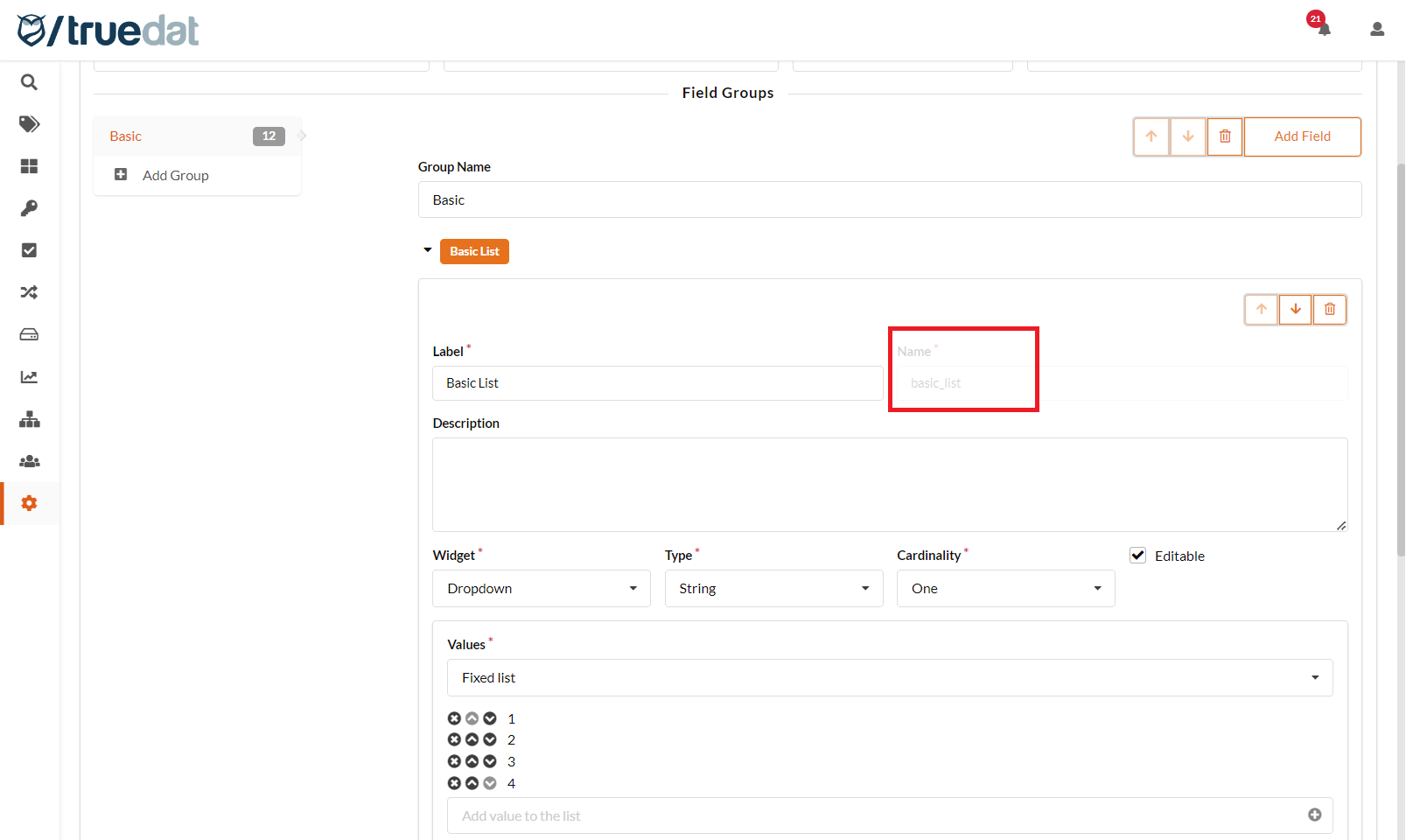
Example: A template field is named `basic_list`. To display “Basic list” instead, create the appropriate message.
### Customise values of filter fields
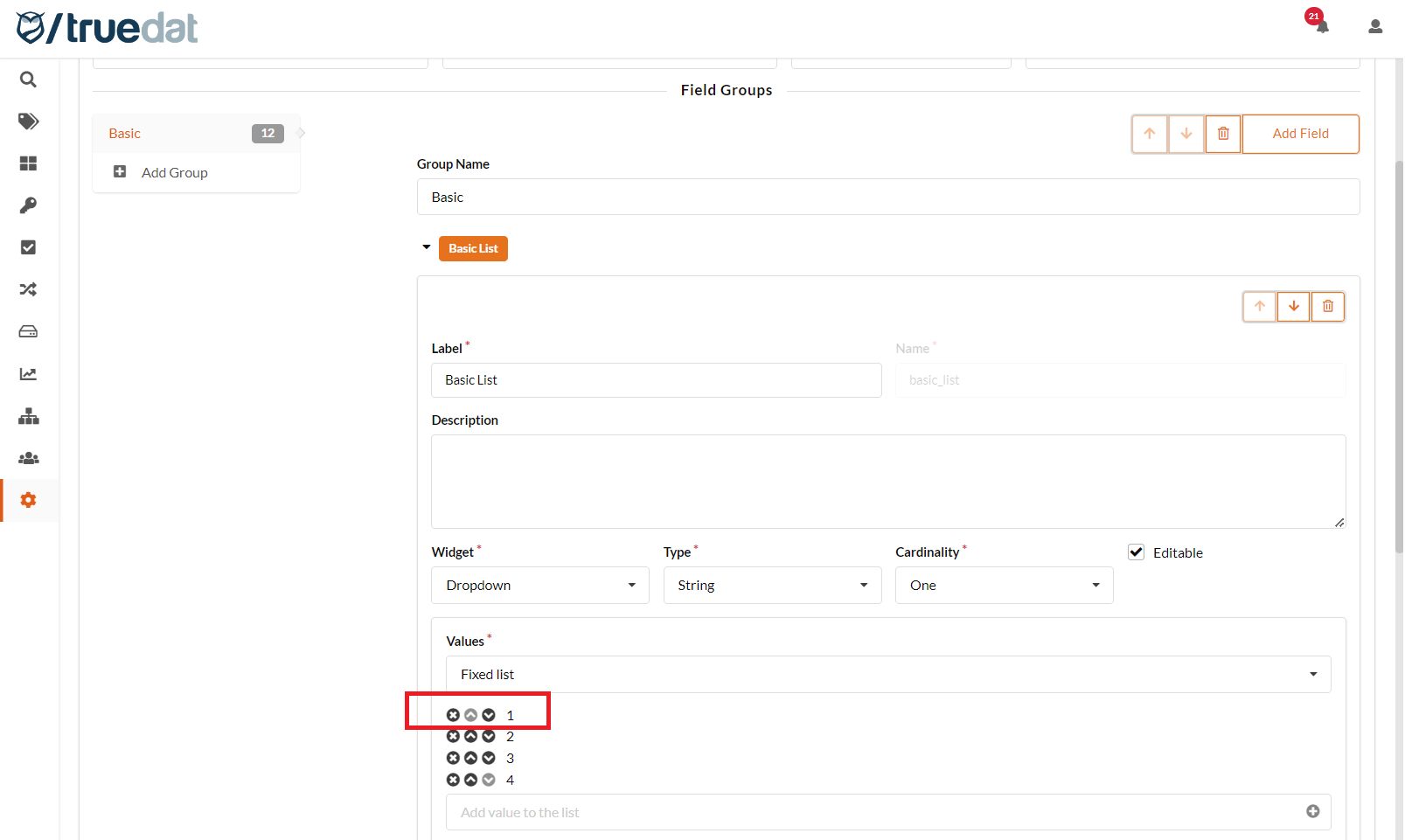
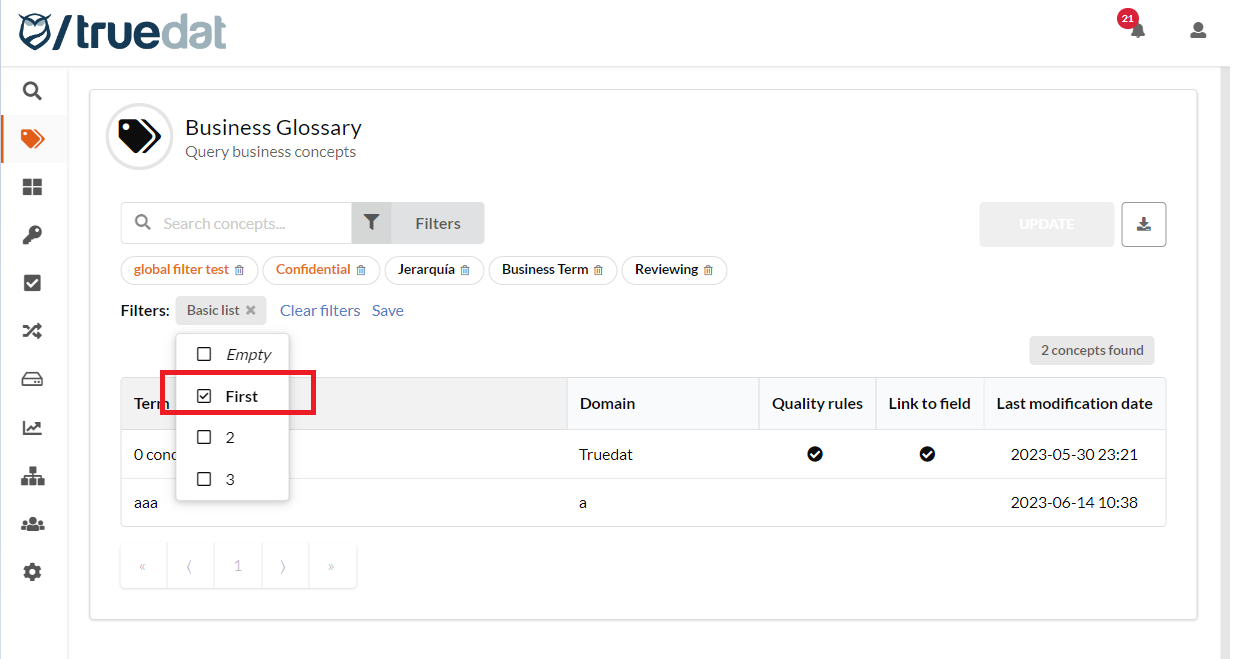
You can also customise values displayed in a filter. This applies when a template field uses a list of values.
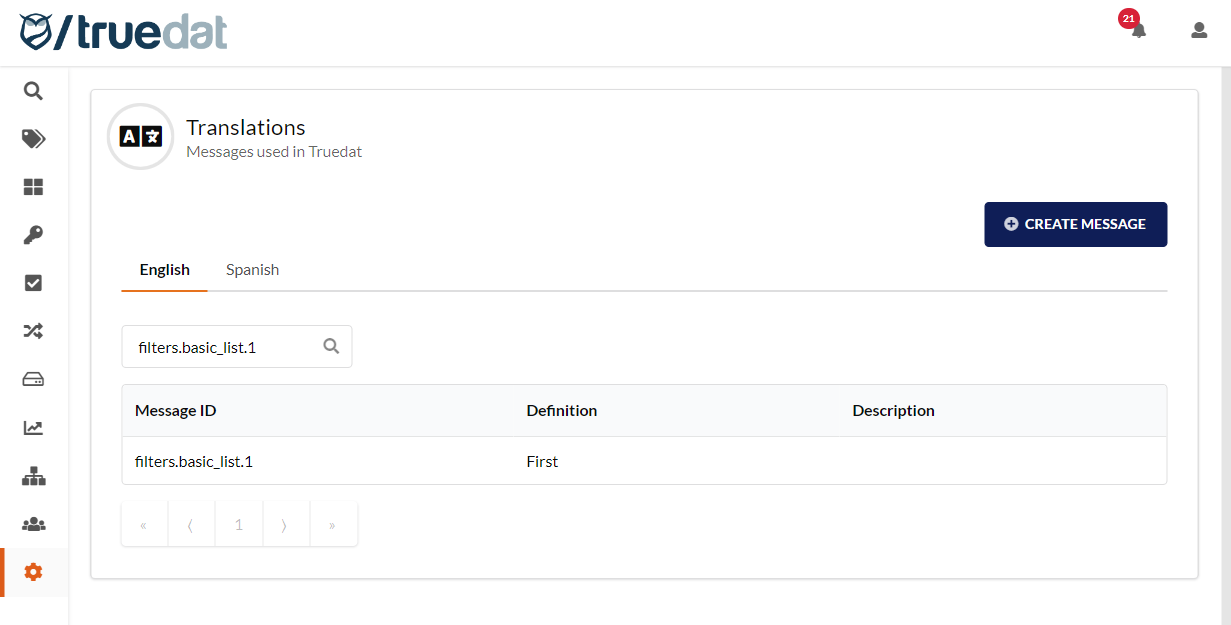
The Message ID follows this pattern: filters.*\[name of the field in the template].\[value from the template]*
The **Definition** contains the displayed text.
Example: A template field named `basic_list` has the values 1, 2, 3, and 4. To display “First” instead of “1”, create the appropriate message.
### Create a structure type icon
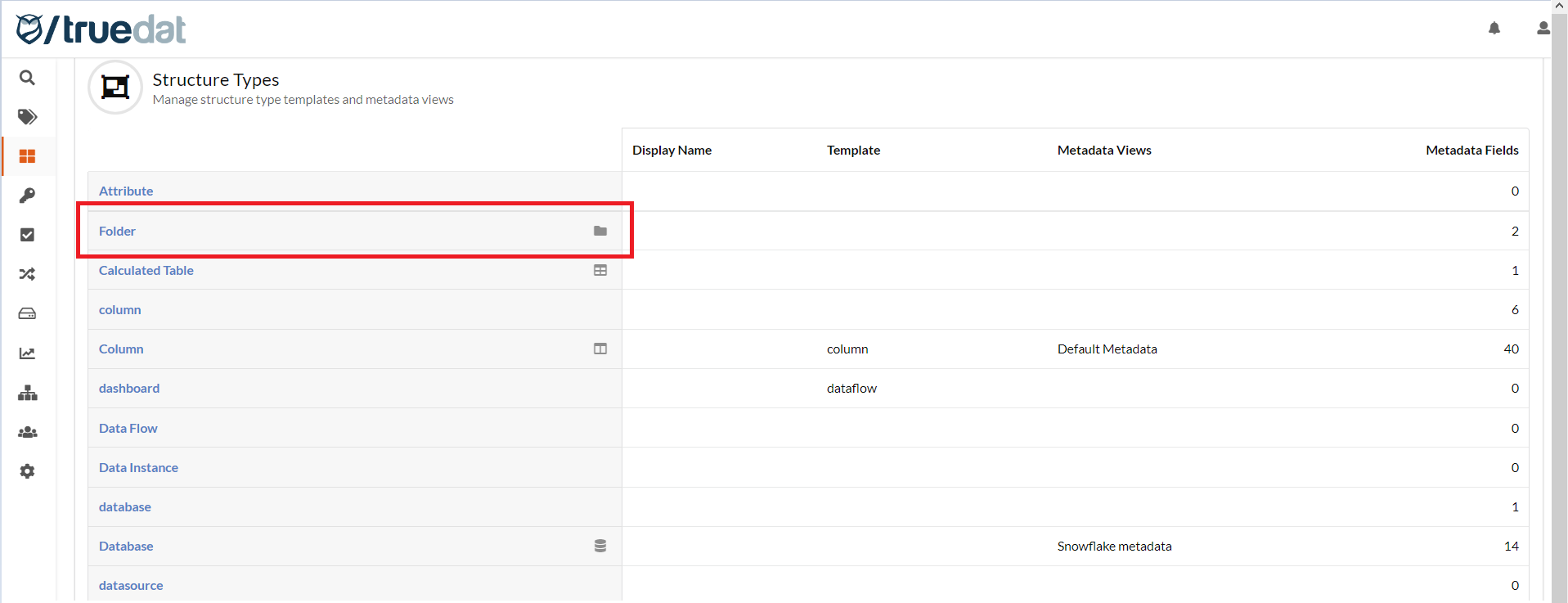
You can customise icons associated with structure types using a message.
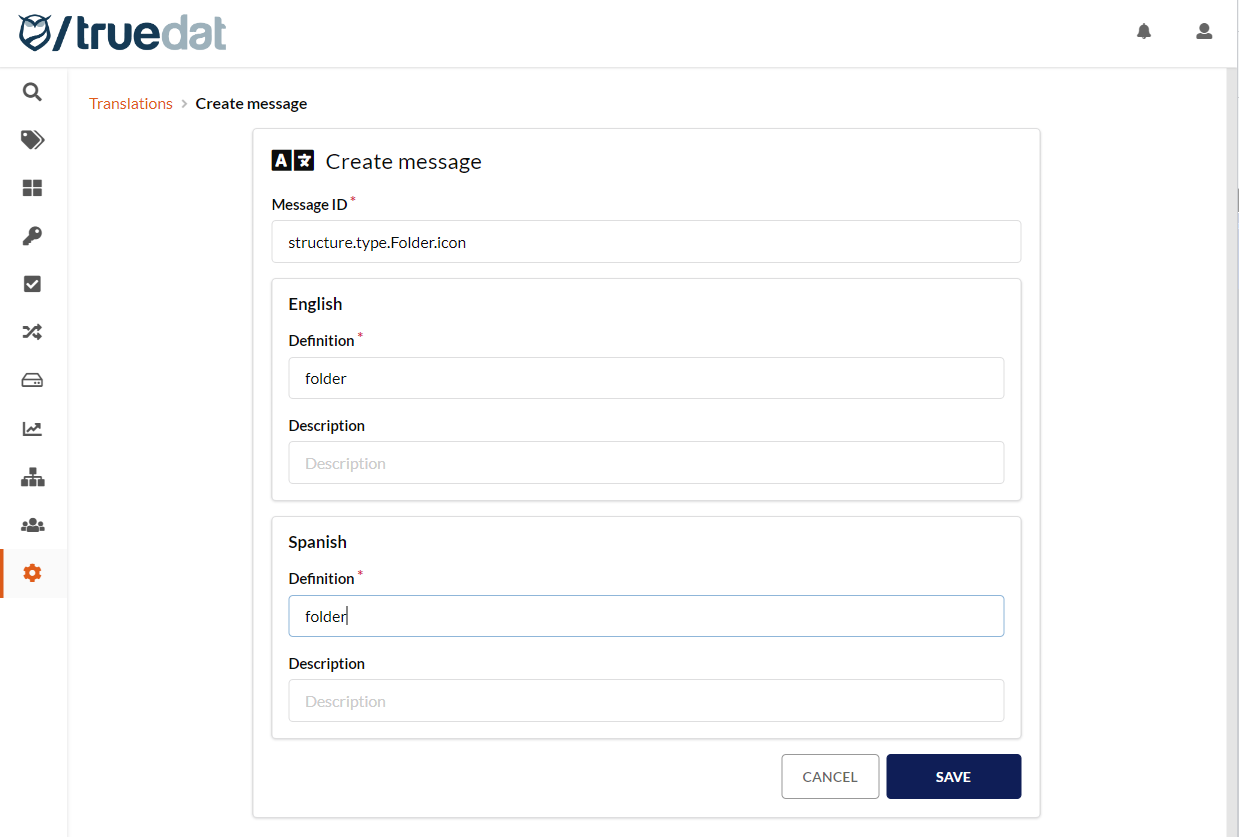
The Message ID for a structure type icon follows this pattern: "structure.type.*\[structure type]*.icon". To customise an icon by field type, such as string, numeric, or boolean, use: "structure.type.*\[field\_type]*.icon".
The **Definition** contains the icon name. Choose an icon from [Semantic UI React](https://react.semantic-ui.com/elements/icon/).
Create a new Message ID and enter the icon name “folder” as its definition.
### Share button for concepts and structures
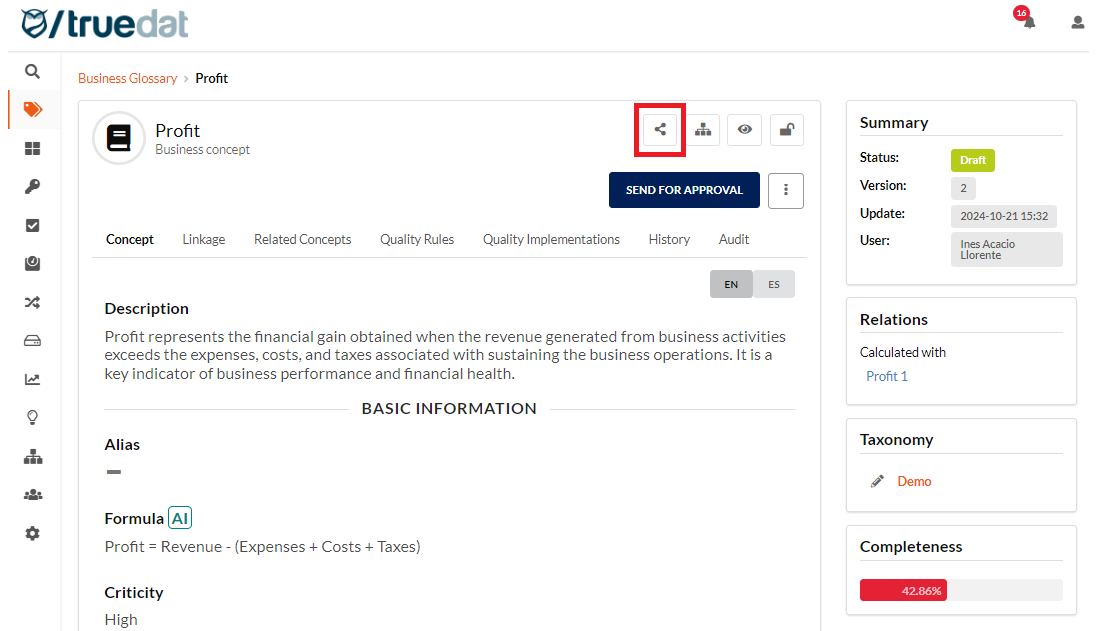
Use the following messages to customise Share icons:
* shareLink.concepts.icon
* shareLink.structures.icon
The **Definition** contains the icon name. Choose an icon from [Semantic UI React](https://react.semantic-ui.com/elements/icon/).
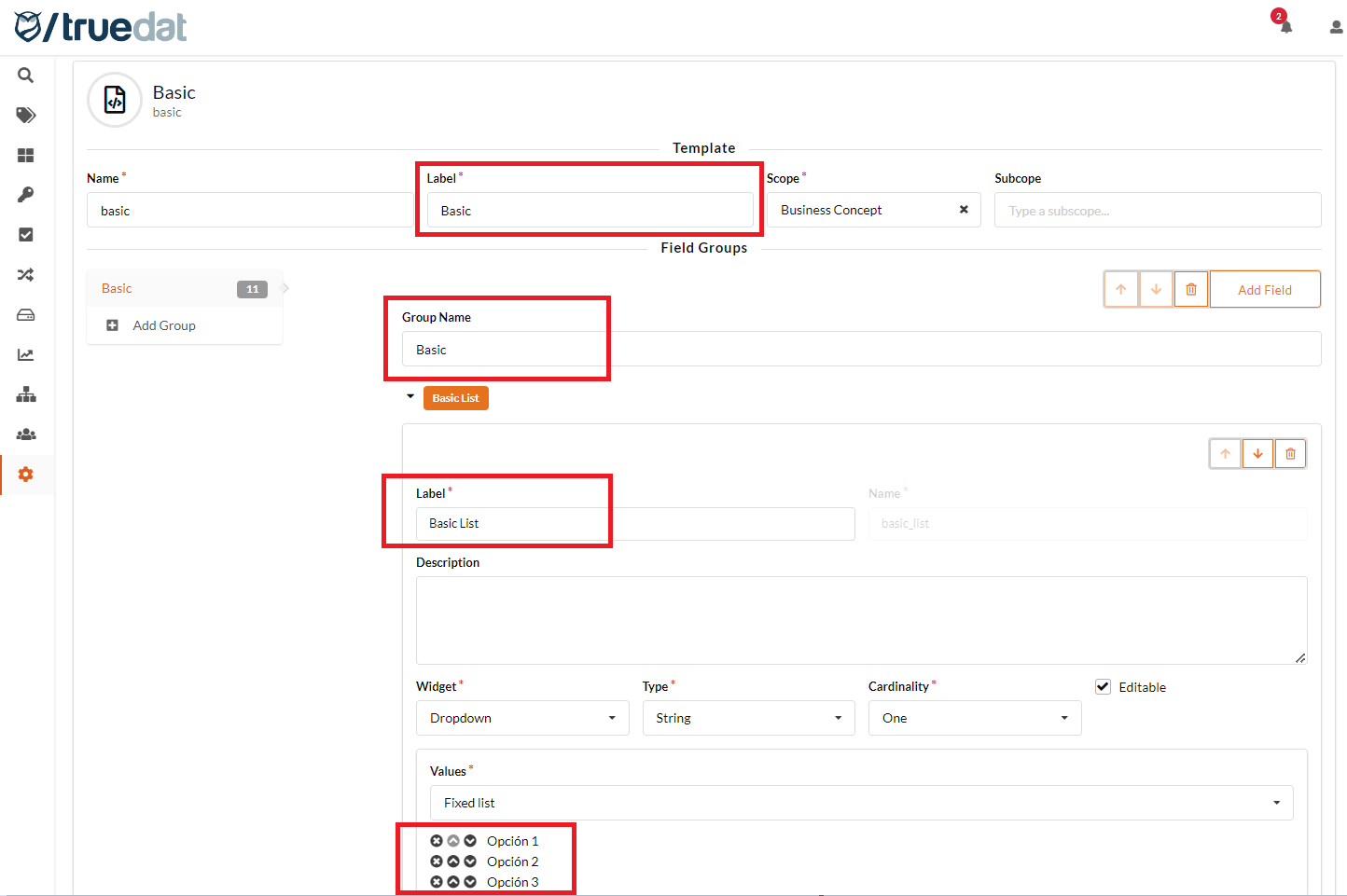
### Translate template fields
Use the following messages to localise template labels, field group names, fields, and values:
* templates.{label}
* templates.groups.{group\_name}
* fields.{label}
* fields.{label}.{value}
{% hint style="info" %}
For **Dropdown** → **Key/value list** fields, use the value, not the key, in the translation message.
{% endhint %}