> For the complete documentation index, see [llms.txt](https://docs.truedat.io/llms.txt). Markdown versions of documentation pages are available by appending `.md` to page URLs; this page is available as [Markdown](https://docs.truedat.io/v8.7/userguide/glossary.md).
# Business Glossary
The Business Glossary provides clear definitions of your business data to the whole organization and helps avoid misunderstandings.
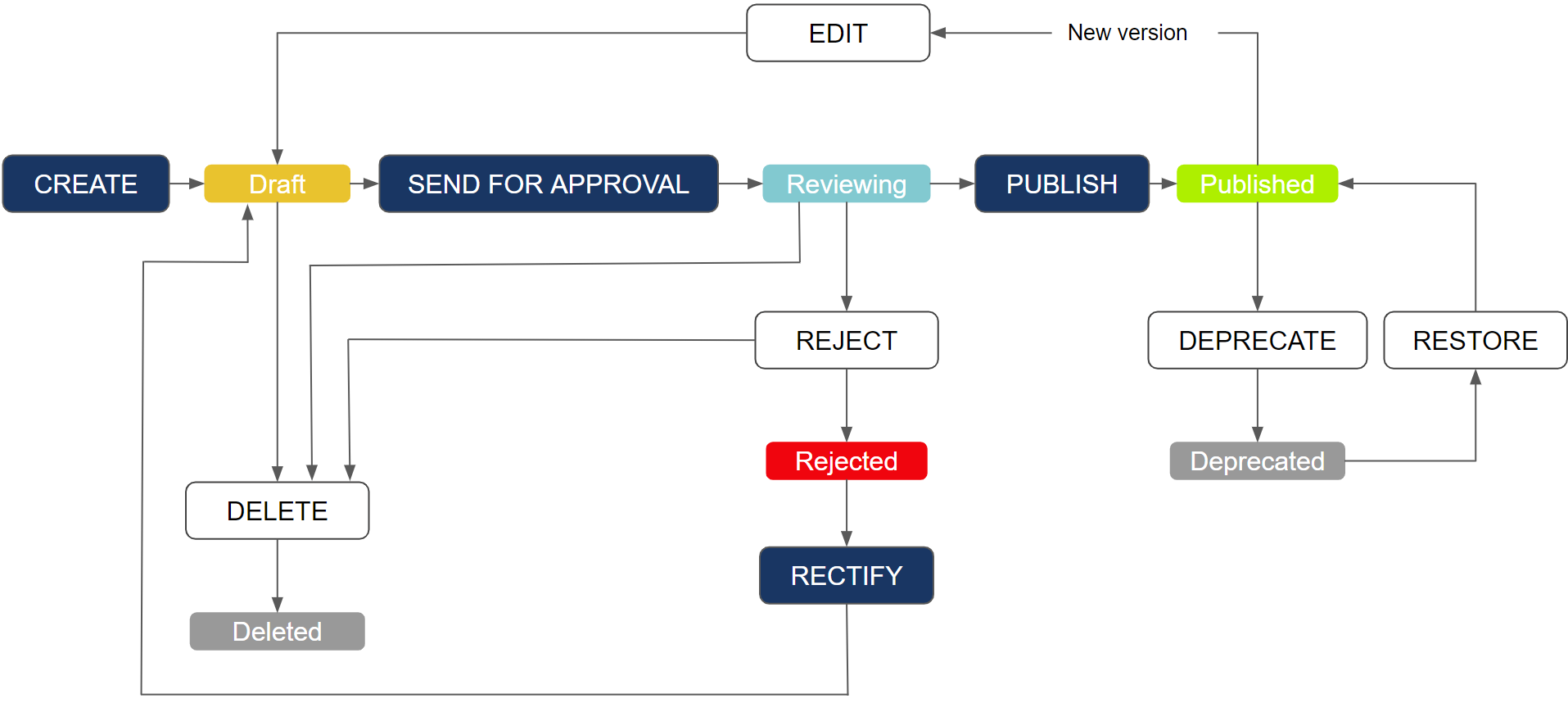
Business concepts are managed through a predefined workflow that relies on configured permissions. The diagram below shows the application's workflow for publishing concepts, along with an example of roles and the permissions each one can have.
In the Business Glossary module, you can view and manage business concepts. These submenu options are available:
* **Concepts**: This view displays published business concepts. You may also have additional views for published concepts based on the concept type if the administrator configured them when defining the templates.
* **Drafts**: This view displays business concepts in Draft, Reviewing, or Rejected status that require user action. You will only see concepts for which you have permission to perform one of the required actions such as send for approval, publish, reject, or rectify.
* **Deprecated**: This view displays concepts that have been archived. You can either restore them to published status or permanently delete them.


In all views, you have the following options:
* **Search for concepts:** The search runs across all concept content and shows matching concepts as you type in the search field.
* **Filter:** This lets you filter by domain, status, type (template), and linked data fields, as well as any fields configured in the business concept [template](/v8.7/administration/templates.md) as a list of values. Filters are only shown for fields with more than one value.
* **Save filters**: You can save your most-used filters. To do this, click **Save**, give the filter set a name, and the combination of filters will be displayed as a quick filter every time you return to this screen.
* **Download:** The list of concepts from the search result can be downloaded in Excel format.
* **New Concept:** Available only to users with the corresponding permission to create a concept in a domain.
* **Sort results:** Sort the list of concepts or search results by any displayed column by clicking the column header.
## **New Concept**
This option is only available to users with permission to "Create new concepts" in a domain.
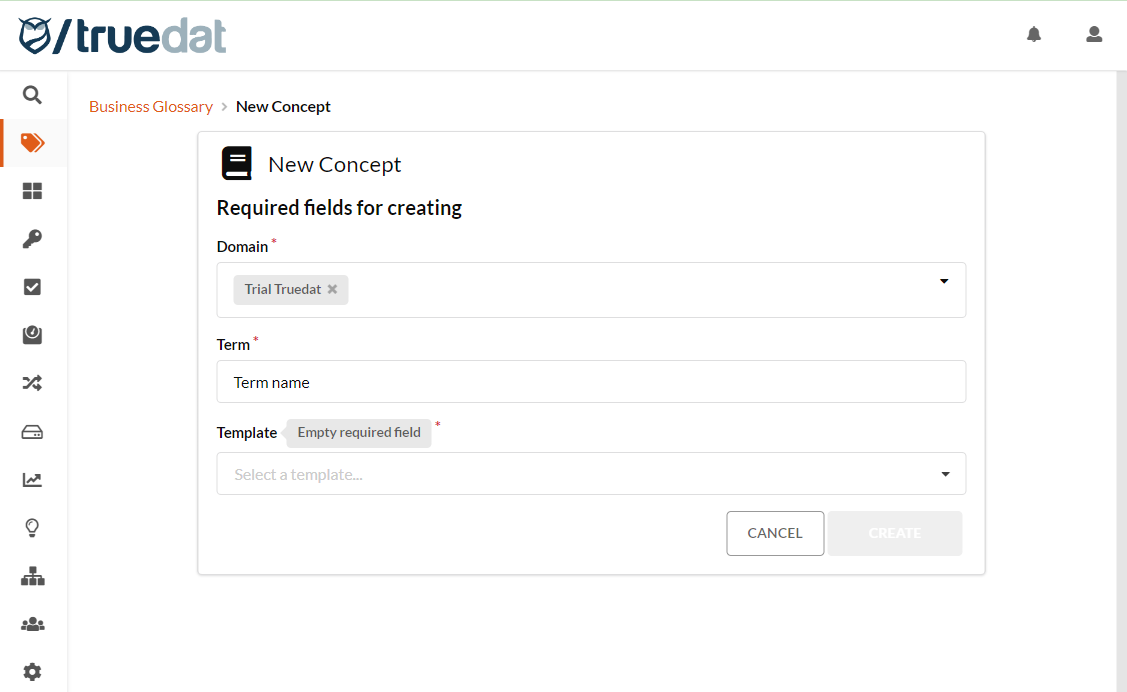
**Domain**: Once users open the "New Concept" form, they can choose the domain where the concept will be created. Only domains where the user has permission to create a concept are available.
**Concept:** Name of the business term.
**Template:** Depending on the client's installation, one or more templates may be available.
* If there is only one template for business concepts, the field will not appear and the complete form will be displayed automatically.
* If you have more than one template, the "Templates" field will be displayed so that you can select the type of concept you want to register. Once selected, the configured dynamic form will be loaded through the corresponding template.
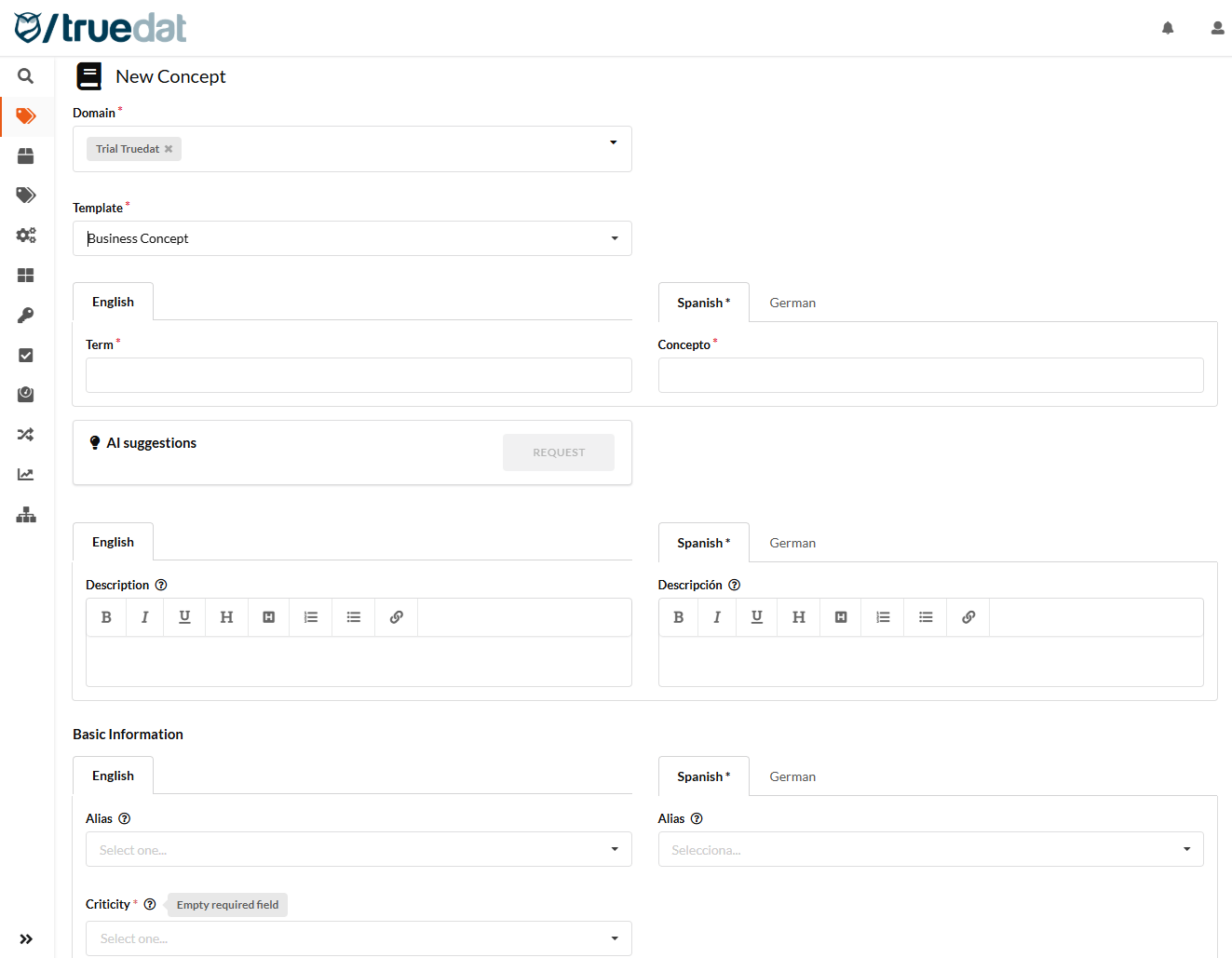
Depending on the template, the corresponding form will be displayed. If there is only one template available for the selected domain, it will be automatically displayed.
The main mandatory fields are: domain, template and concept.
The rest of the fields will depend on the configuration of each installation.
When the form is complete, click on "Create" to create the new business concept in draft status.
Example of a concept where all the mandatory fields are completed:

Example of a concept where some mandatory values are missing. It appears as Draft Not completed and has the Request approval button disabled.

Mandatory fields are marked with a red asterisk so you can easily identify which fields must be completed before you can publish the concept.

The template may include additional fields that are not required for publishing the concept but are recommended to provide a complete definition of the business concept. Only concepts with all mandatory and optional fields completed are shown as 100% complete.
If you have several languages set up in Truedat, you will have to complete the concept form in all the languages that have been marked as required. Fields with a fixed set of values will be automatically populated and will use the translations that must have been defined by an Administrator in the Languages module.
### Bulk upload of concepts
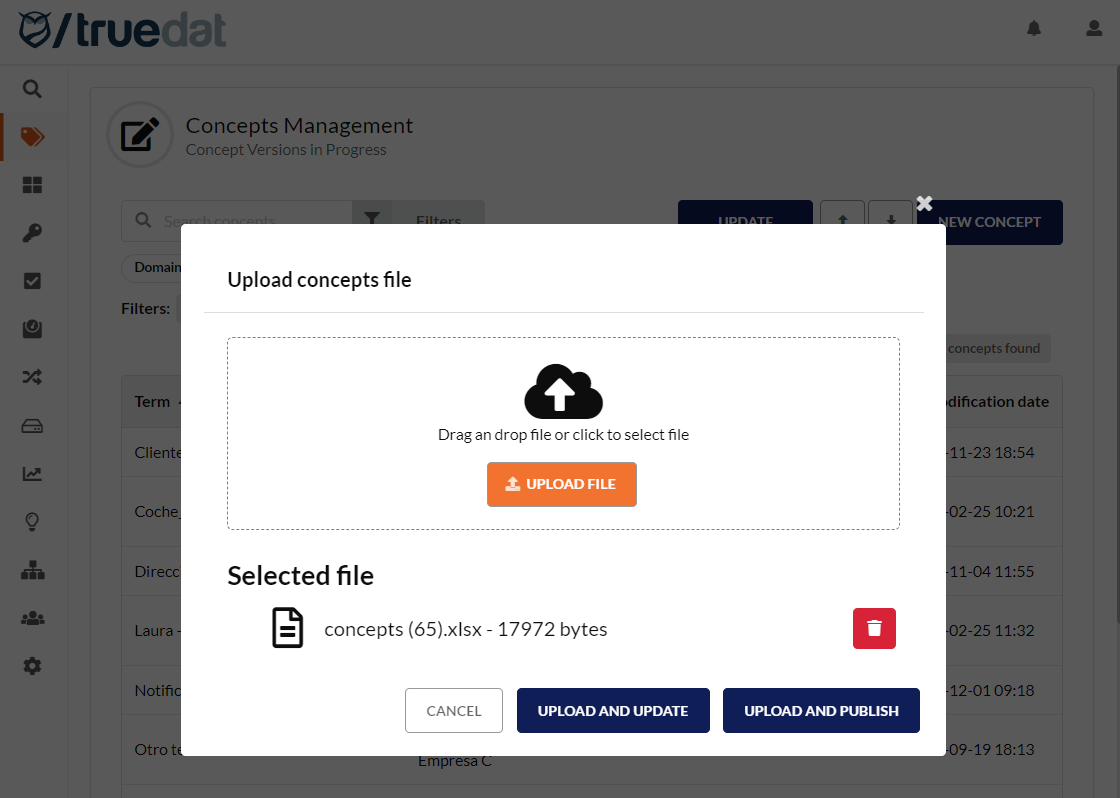
You can bulk upload concepts from an Excel file. Use this option to create new concepts and/or update existing ones. The upload file format is the same as the download file format, so if you need to update concepts, you can download the file, modify the required information, and upload the same file.
When uploading the file, if you have permission to publish concepts, you will be given the option to create or update and save the version directly in published status. Otherwise, the concept will be created or updated in draft status and will go through the standard approval workflow.

Keep the following in mind:
* To create a new concept, you must provide the name, the domain, and any required template fields.
* To update an existing concept, you need to make sure to include the concept id in the file.
* There should be a sheet in the Excel file for each of the template types. The sheets must be named with the name (not label) of the template.
* All fields must be completed with valid values:
* The required fields must be completed.
* Fields with a list of values must be completed with a valid value.
You can check the progress and result of the file load in the "My loads" menu option. If there are any errors, you will see the details. You can export them to a CSV file, review and correct them, and then try to load those records again.
## **Business Concept Screen - Workflow**
Clicking on any business concept in any subsection of the module, whether published or pending, displays the following screen:

This screen is divided into 2 blocks.
1. **Detailed information**: where detailed information is displayed.
2. **Summary**: where the general information is always shown:
1. **Status**: concept status (published, rejected or under review)
2. **Version**: the version number of the concept.
3. **Modification**: the last modification of the concept.
4. **User**: the person who created or modified the concept.
Depending on the concept status and user permissions, different review and publish options are shown:
* For draft concepts: you can "Request approval", "Edit" or "Delete".\
\
\
Deletion removes only the version currently in draft status without affecting an earlier published version if it exists.
* For published concepts: a "New version" can be created or you can "Archive" it.\

By clicking "New version", you can edit or delete it and, depending on the workflow, send the new version for approval or publication.
Clicking "Archive" removes the business concept from the list of published concepts. Use this option when a published term is no longer used but cannot be completely removed from the system because it has already been published. The application will notify you if the concept you are about to archive has related information such as links and quality rules.

* Concepts in Review status: "Reject" and "Publish" options are displayed

Clicking "Reject" will change the status of the term to "Rejected".
Clicking on "Publish" will change the status of the term to "Published" and will add the concept to the section.
* Concepts in Rejected status: there are two options available, "Rectify" and "Delete"\
\
Clicking on "Rectify" will send the concept for approval, going back to the draft status.
By clicking on "Delete" the option to permanently delete the concept version will appear. This delete action will only delete the version that has been rejected. If there are previously approved versions of the concept, they will not be affected.
Additionally, each concept has a series of tabs that provide different functionalities that are explained below.
## **Concept**
This is the main section of the module. It contains the details of all the attributes the user wants to display, such as description, type, values, formulas, managers, and areas.

Users can subscribe to changes on a concept and receive an email when changes are made to the concept, such as modifications, publication, structure links, or new quality rules.

You can share a concept. This action sends a notification and an email to the selected users, including the corresponding comment.

Users have the possibility to comment at the end of this section.

## **Linkage**
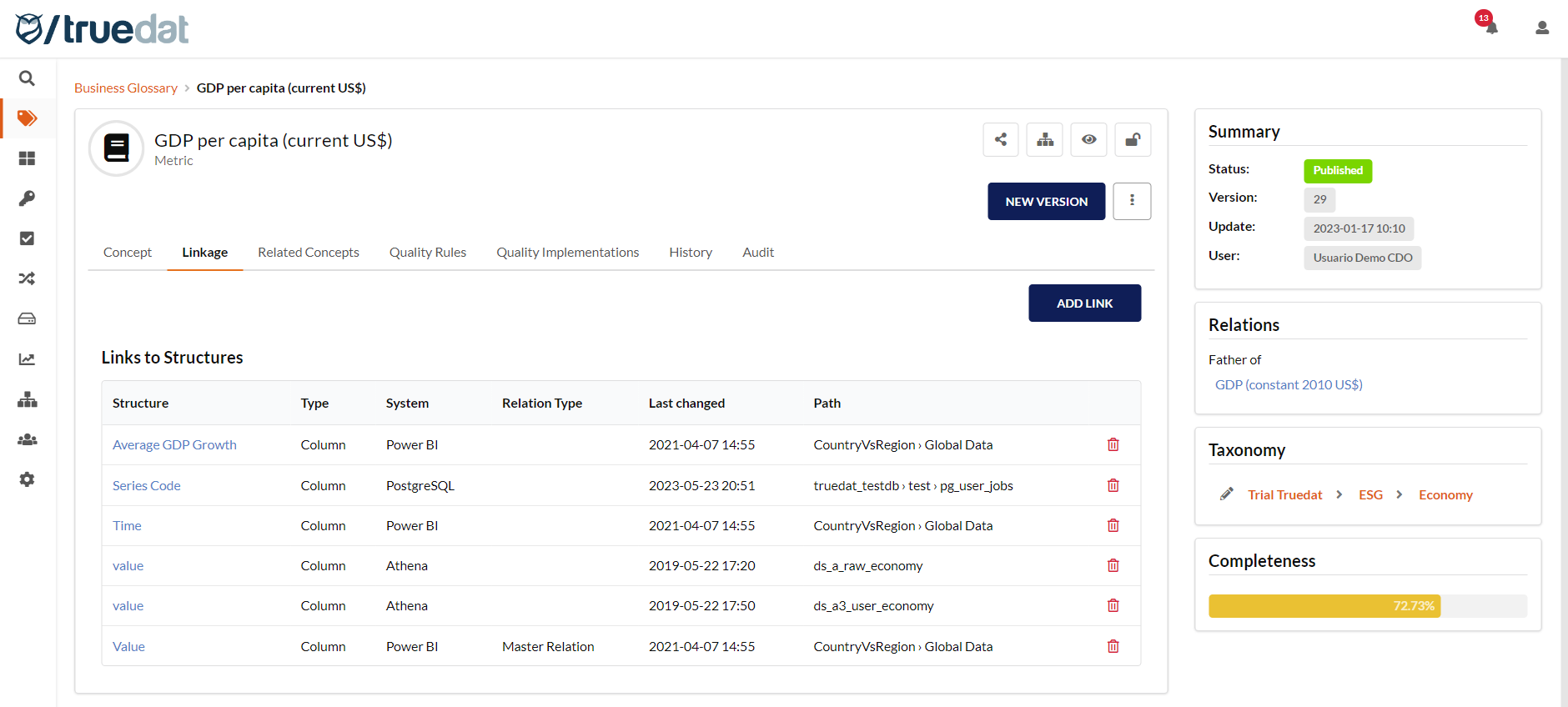
Links between the business concept and the metadata contained in the Data Catalog are displayed in this tab.
You can navigate to the Data Catalog by clicking on the structure name.
The option to remove a link is also available if you have permissions to do so.
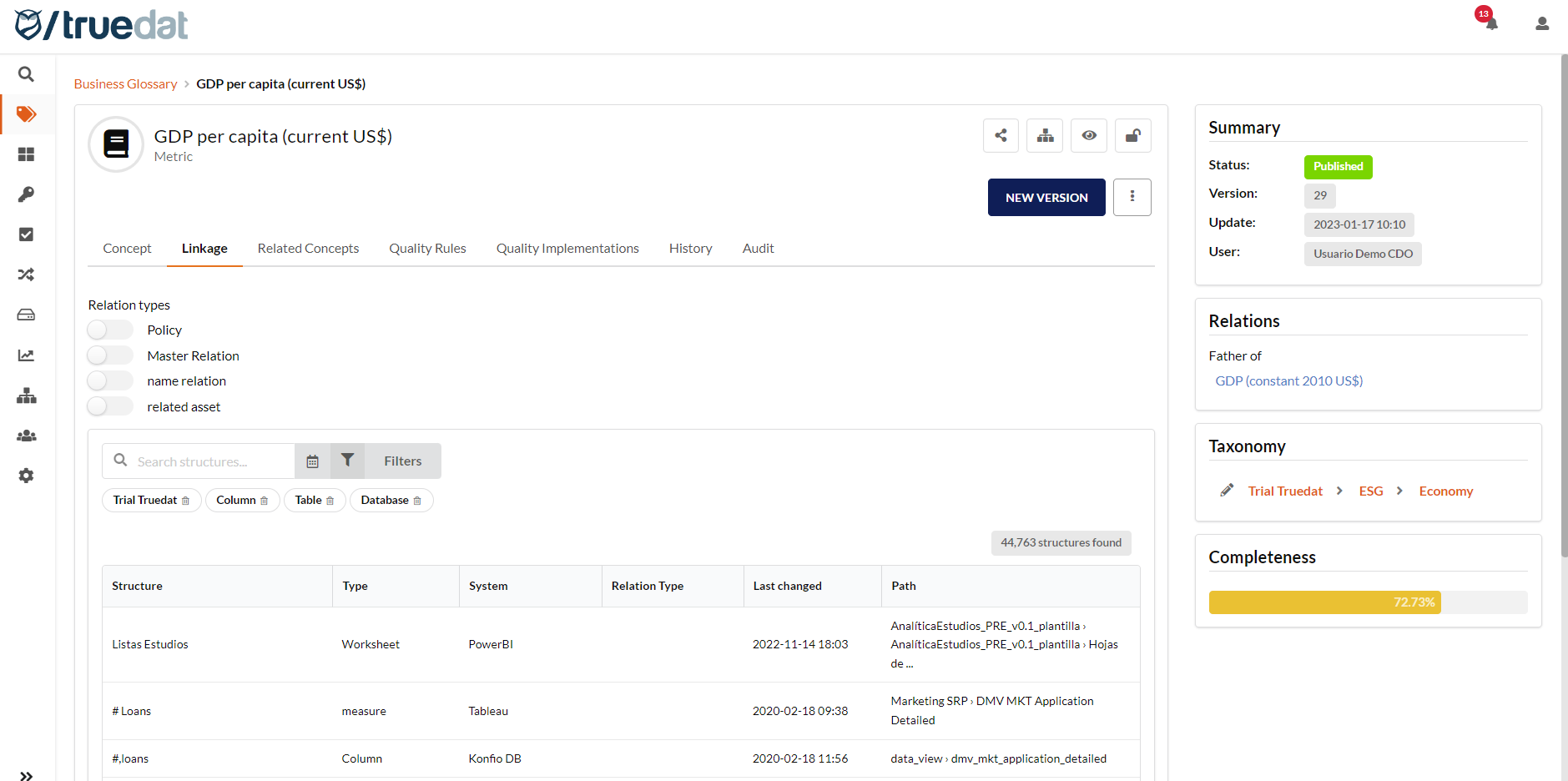
For users with permission to manage links, an "Add link" button appears. It lets you add a new data link and use filters and search to find the field or structure you want to link to:
#### AI-powered linkage
Manually linking logical business concepts to physical data structures can be very time-consuming. You can use link suggestions that rely on AI agents that analyze the information in the data catalog and provide links, along with an AI Confidence Score, for your review and acceptance.
Click the **Suggest** button to get a list of data structures that could be mapped to the business concept. You need specific permission to use this AI suggestion feature, in addition to the permissions that allow you to map concepts to structures.
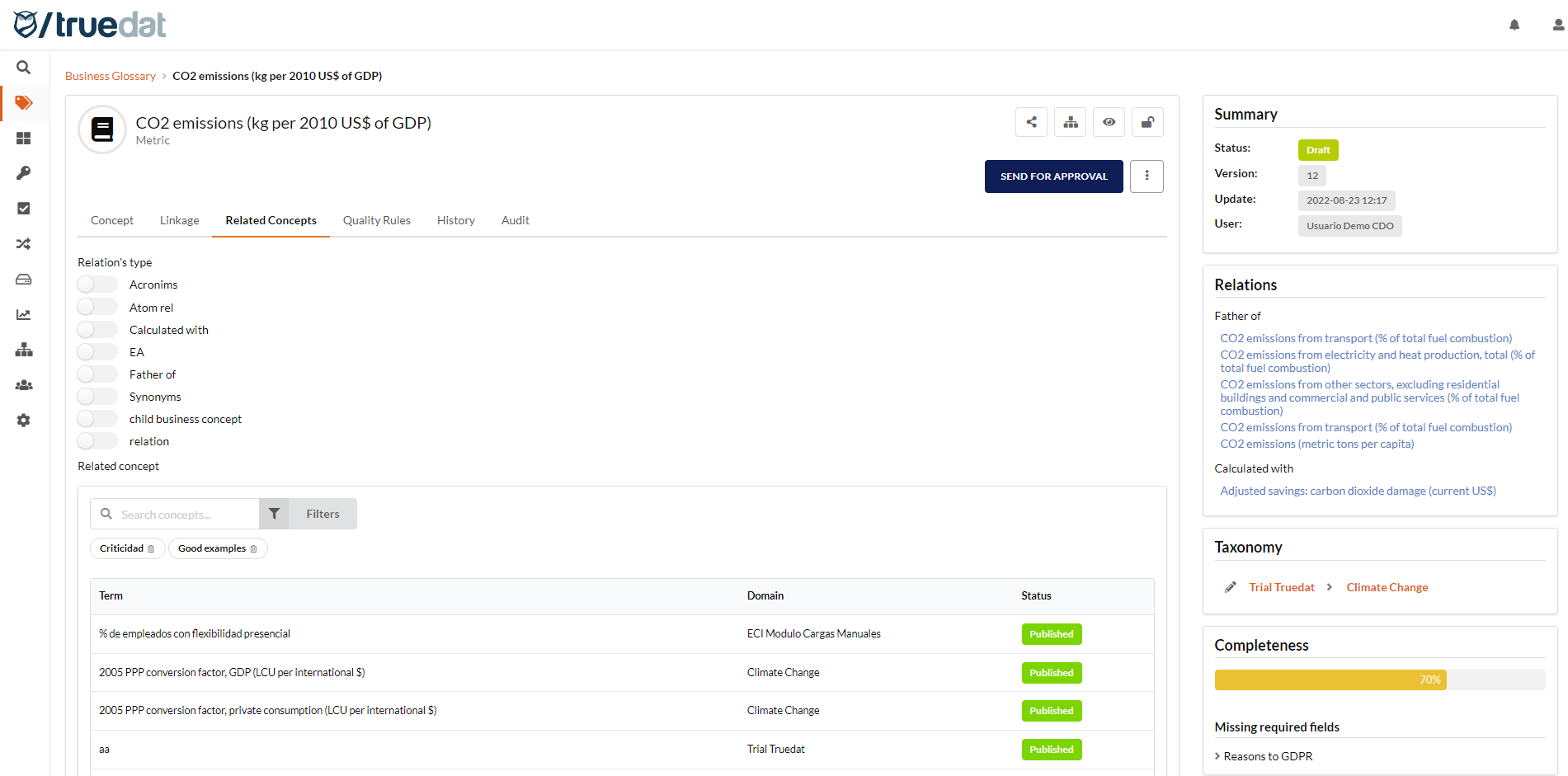
## **Related concepts**
To make this section available, you must configure [types of relationships](/v8.7/administration/relations.md) between business concepts within the application. Once these relationship types are configured, this tab lets you view relationships between concepts and, if you have permission, create new relationships or delete existing ones.
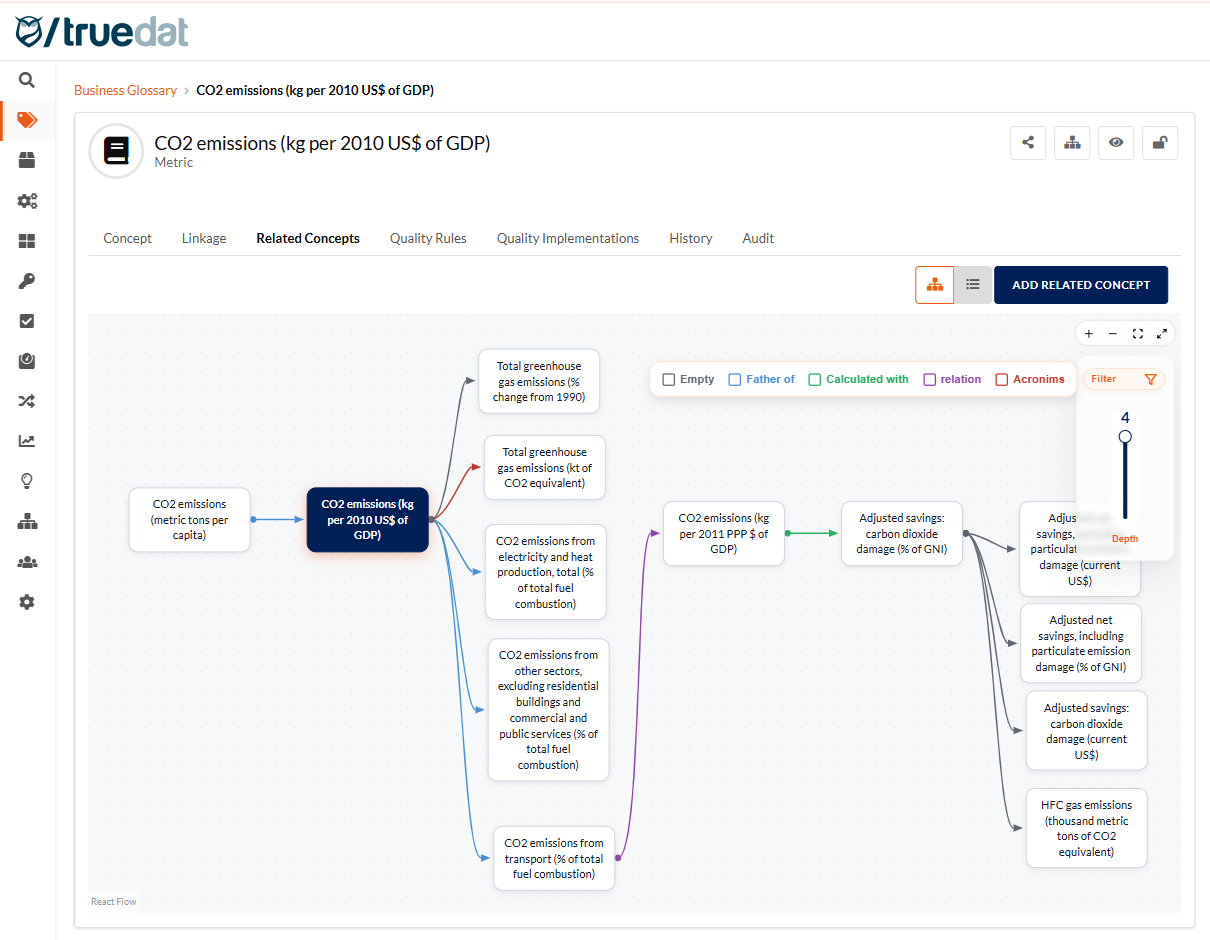
A graph with all business relationships for the selected concept is displayed and can be used as the functional model for that concept. From this graph, you can navigate to the related concepts by clicking on them.
The number of displayed levels can be adjusted to simplify the graph. The default number of displayed levels can be customized in each installation.
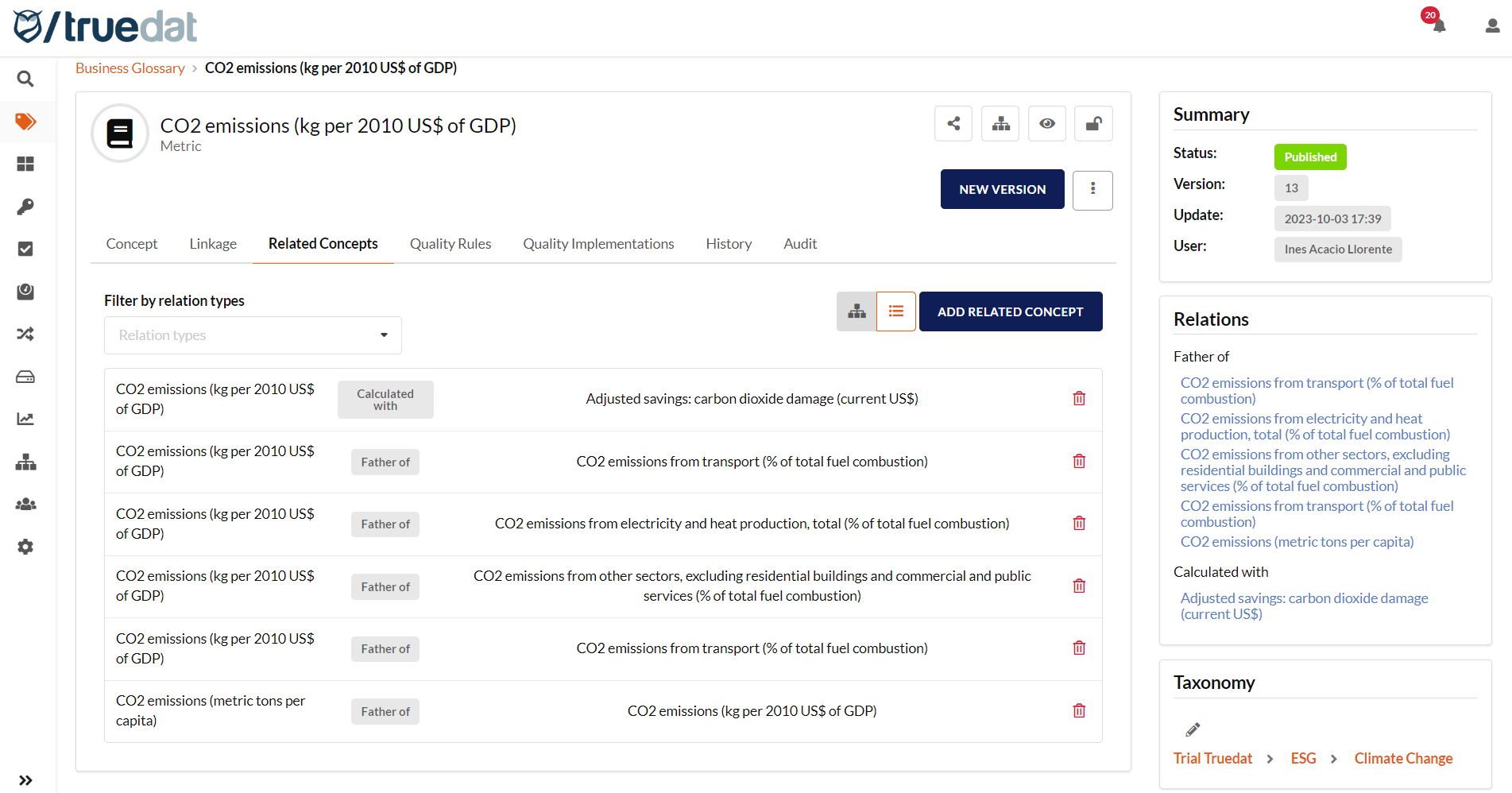
A table view of these relationships is also available:
#### Creation of a new relationship between concepts
In the Related Concepts tab, if you have permission to link concepts, you will see the "Add related concept" button. Click it, select the relationship type if required, and search for the concept to link. If you want to link multiple concepts at once, use the [Links Manager](#links-manager).
## **Quality Rules**
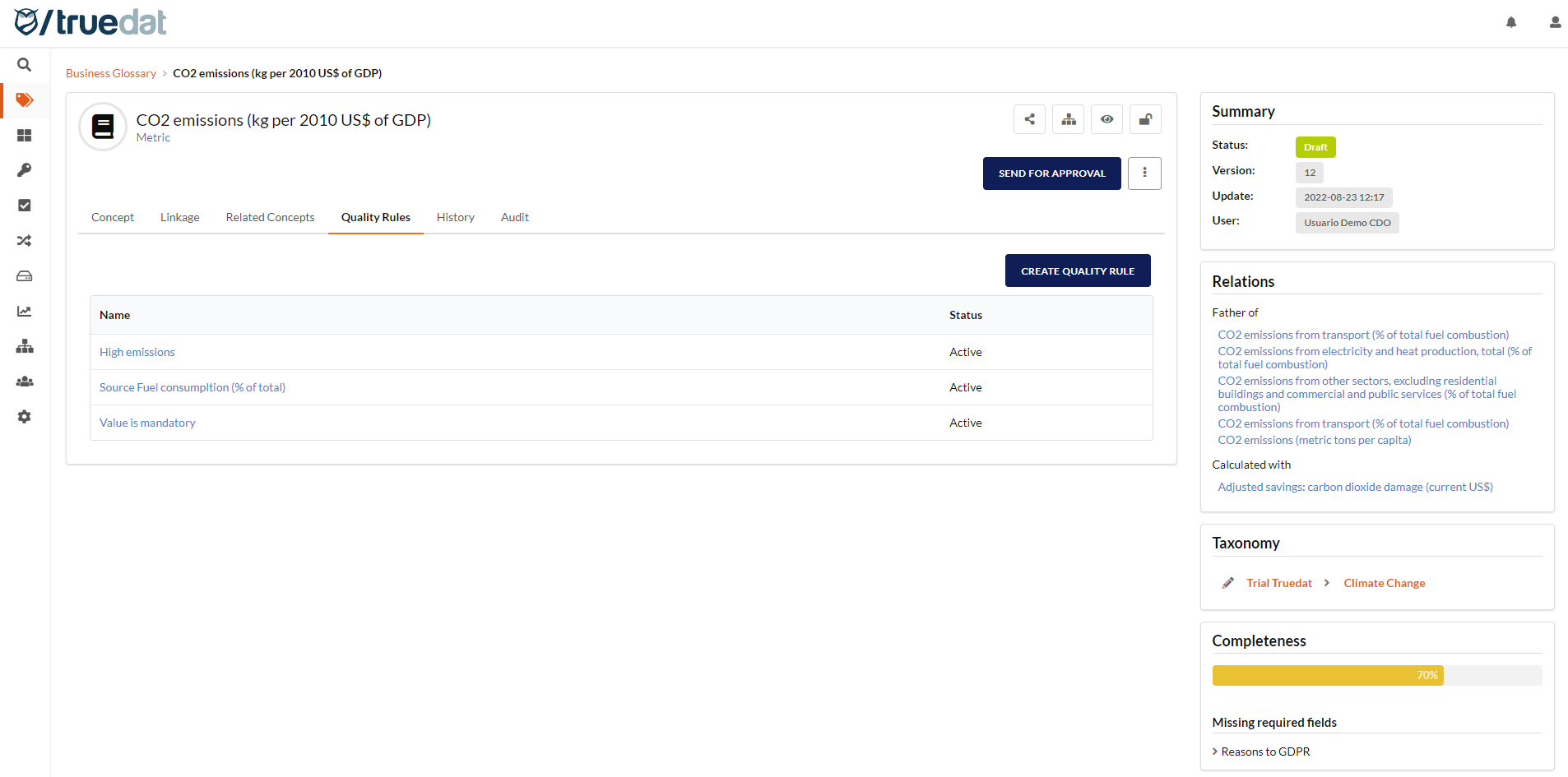
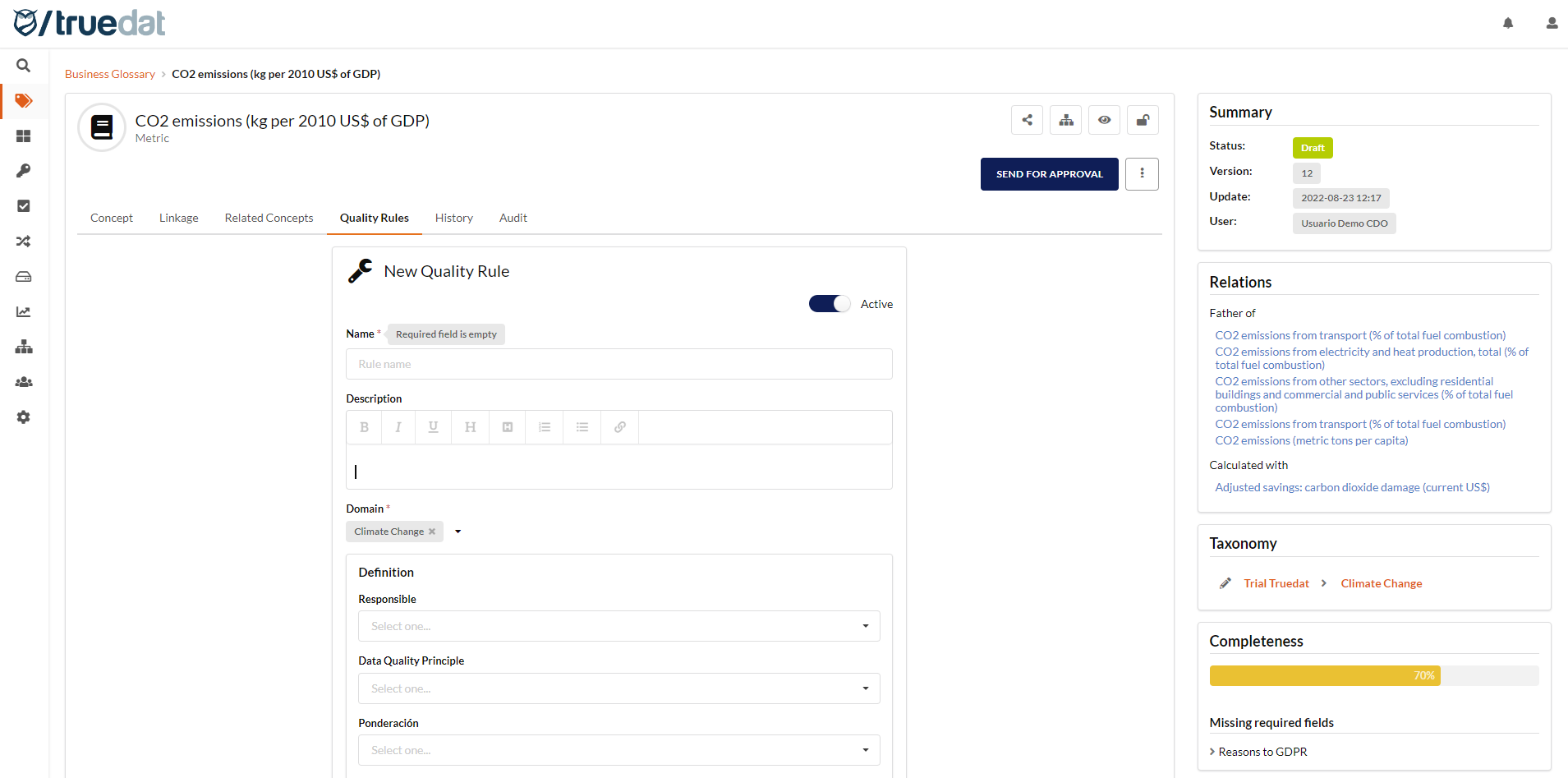
In the Quality Rules tab, you can create a [new quality rule](https://confluence.bluetab.net/display/TRUED/1.4+Calidad+del+Dato), which is automatically linked to the concept where you create the rule. The concept domain is also assigned automatically to the quality rule.
This screen displays all quality rules related to business concepts. Clicking on a rule shows more detailed information, as shown in the [data quality section](https://confluence.bluetab.net/display/TRUED/1.4+Calidad+del+Dato).
The "Create quality rule" button allows you to generate a new rule related to the business concept and you will reach this screen:
## **Concept History**
In the History tab, you can check all versions that have been published or are currently being worked on.

Clicking on a record shows the information for that version, letting you check what data the concept had at that time.

## **Audit**
Lastly, the Audit tab shows the details of all actions and related changes on the concept. You can see what changed, when, and by whom.

## Links manager
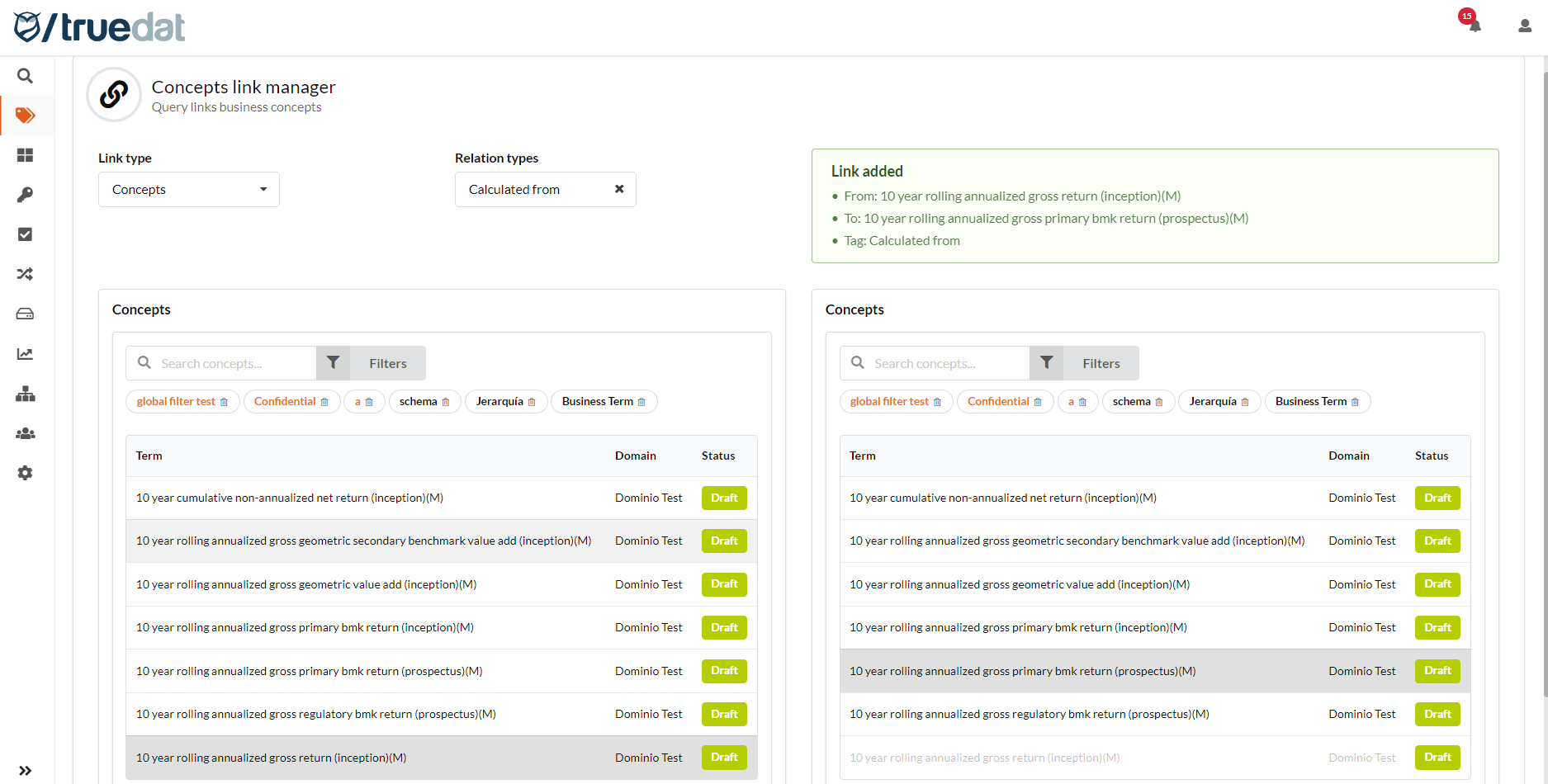
If you need to link concepts to multiple data structures and other concepts, you can use the Links Manager option.
Go to the "Links manager" menu option under the "Glossary" module. Select the type of link you want to create, either to data structures or to other concepts. Then select the relationship type, if applicable. In the box on the left-hand side, search for and click the concept. In the box on the right-hand side, click the structures or concepts to link. Once you click, the link is created. If you click a structure or concept that is already linked, the link is removed.
## Concept sharing between domains
This feature is intended for multi-organization installations where multiple glossaries are managed. In these cases, there is usually a corporate domain where cross-business concepts are defined. Using the sharing functionality, users with the corresponding permissions can share concepts with other domains. This allows any user with permission to view concepts in the shared domain to see that specific concept.
A concept may be shared with multiple domains.