> For the complete documentation index, see [llms.txt](https://docs.truedat.io/llms.txt). Markdown versions of documentation pages are available by appending `.md` to page URLs; this page is available as [Markdown](https://docs.truedat.io/v8.7/userguide/data-market.md).

# Data Market

## Grants

Truedat can be used to document grants given to users to access data structures. To achieve this, a customized integration needs to be in place to include this information using Truedat's API.

Using the application side menu, you will have two views available: "My Grants" and "List of Grants".

### My Grants

In this view, users will have a complete list of all structures to which they have been granted access. This will include structures for which the grant has been provided and any other structure inheriting this grant.

![](/files/-MkbN72WNP5EZCJprH8x)

### List of Grants

Any user with permission to view grants will have this view available. In this view, all grants will be listed for review. Users will be able to apply filters by structure type, system, and domain.

![](/files/-MkbRy9swidB9n89qxs2)

## Grant Requests

Our data catalog may be used to manage user requests to access data (grant requests). This is done using a "shopping cart" where users include the structures to which access is being requested.

Users can request access to a data structure for themselves or for other users. To do so, the requester will need the permission "Create grant request for third parties", and the requestee will need the permission "Allow grant requests from third parties".

### Configuration

**Template**: To activate this feature, at least one template needs to be created in the "Grant request" scope. This template will define the information the user needs to complete when requesting access to the data. More than one type of template can be created if you need different forms.

**Permissions**: Provide permission "Approve grant request" to all roles that need to approve these requests.

### Shopping cart

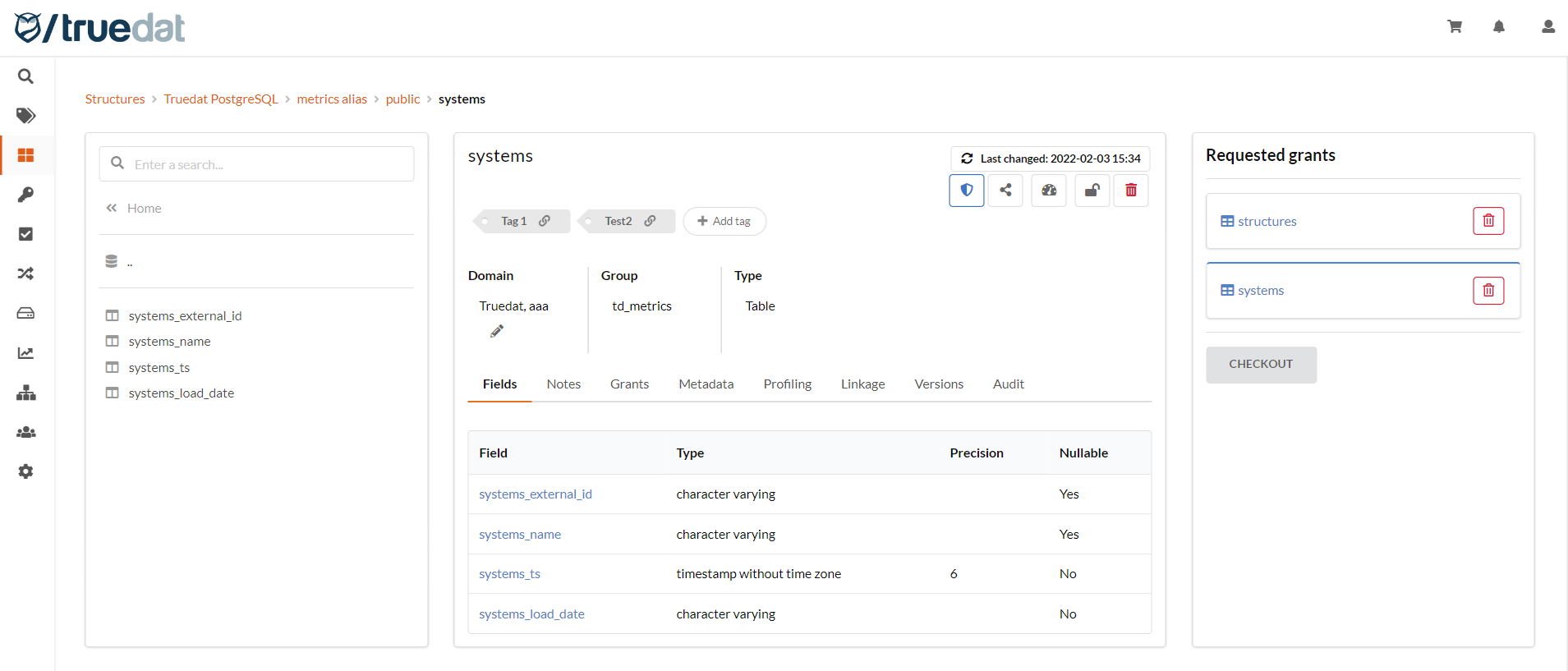
Once this configuration has been created, users will have the option to add structures to their cart and check out the request, completing the data that has been set up beforehand.

There are two ways to add structures you need access to:

**1) Navigating the Data Catalog:**

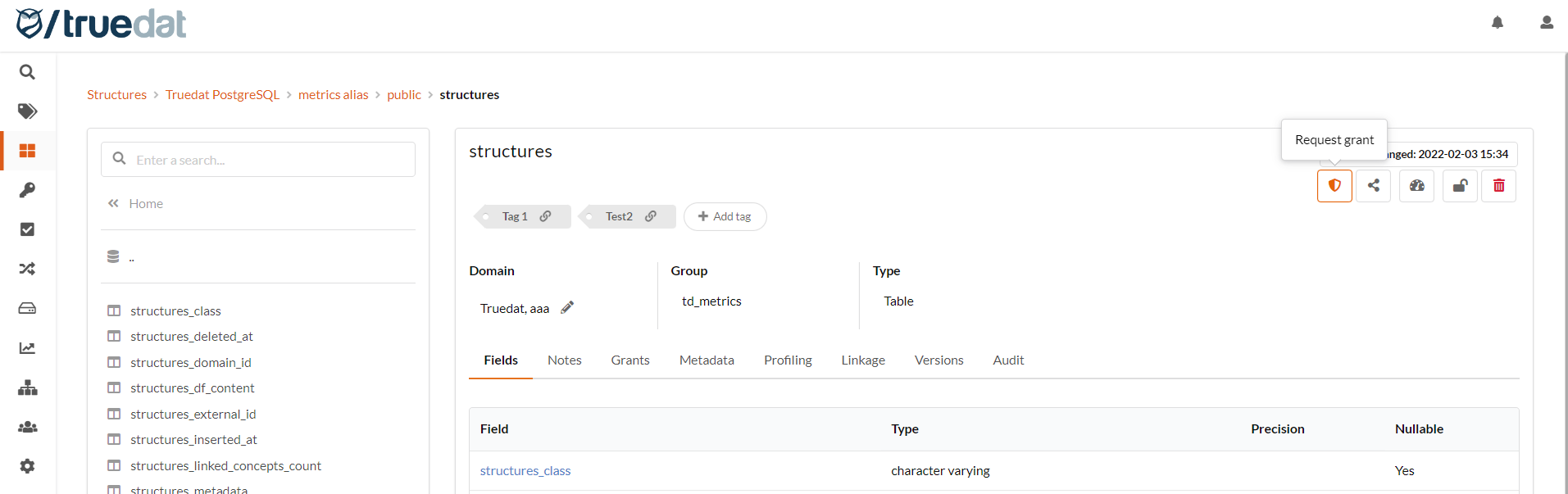
In the Data Catalog, go to the structure you need access to and click on <img src="/files/JE8fagDBQhz9AT200PI4" alt="" data-size="line">. This will add the structure to your shopping cart. You can add as many structures as needed and then check out, which will register your request.

<figure><img src="/files/ETX9tjHjKl59oQ7FsqB4" alt=""><figcaption><p>Click on the Grant Request button</p></figcaption></figure>

<figure><img src="/files/N0qvcNVyxdRz6qcUByJw" alt=""><figcaption><p>Once you have added all the structures to the cart, click on Checkout</p></figcaption></figure>

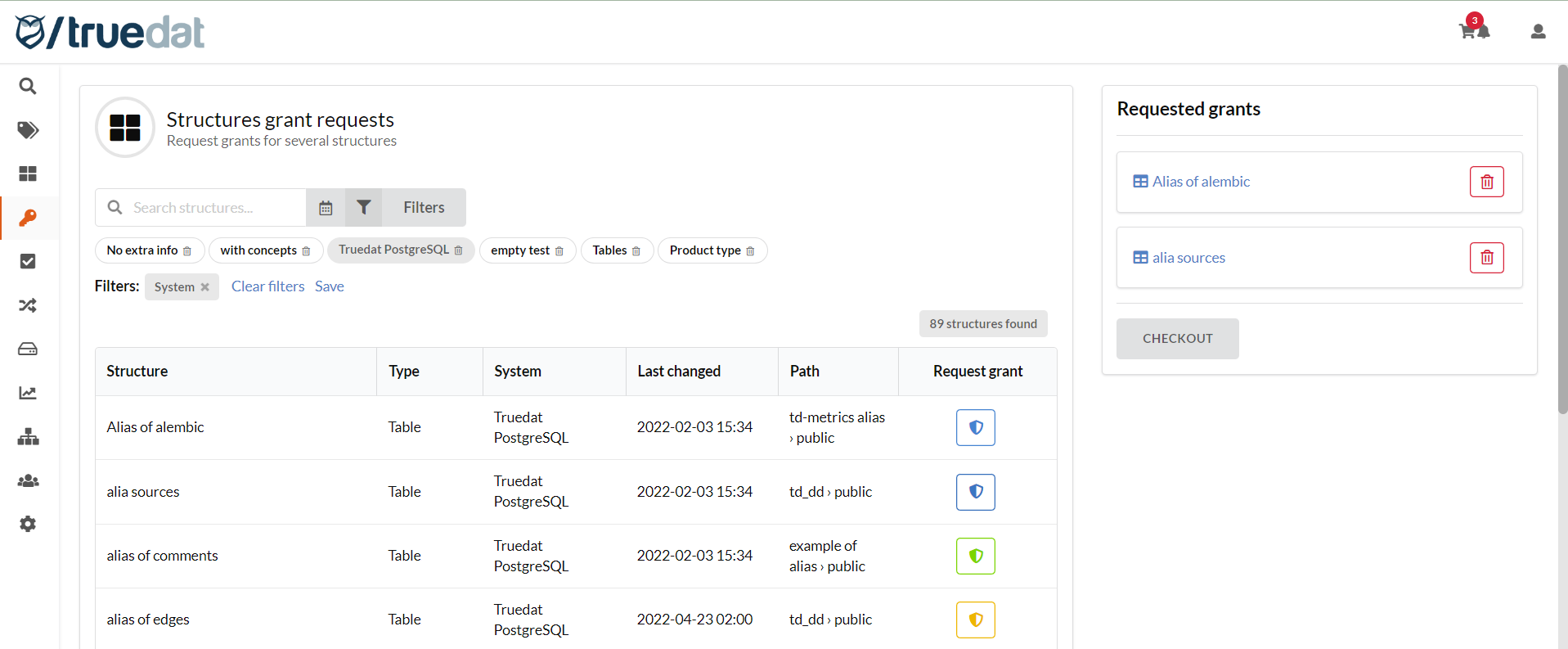
**2) In "Structures grant requests" from the Data Market menu:**

On the list of structures, click on the Grant Request button. This will add the structure to the shopping cart.

<figure><img src="/files/9A6oeLRZZel3lrWydGbd" alt=""><figcaption><p>Click on the Request button on the right and once you have added all the structures to the cart, click on Checkout</p></figcaption></figure>

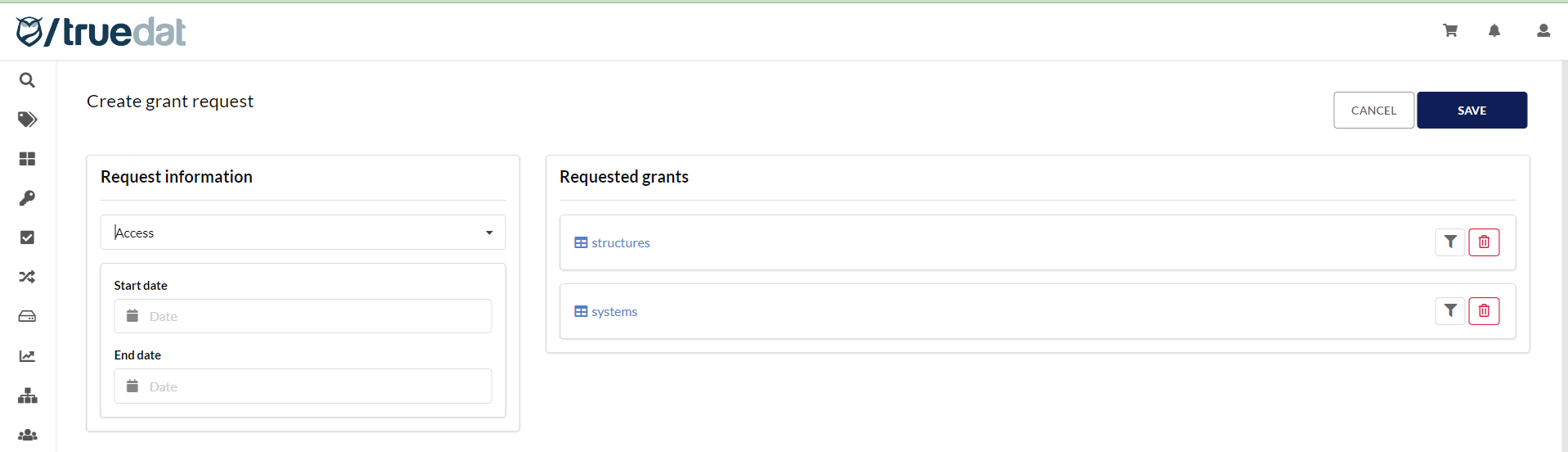
**Check out and submit request**

<figure><img src="/files/JXONwETnlxuG9mQALfZL" alt=""><figcaption><p>Complete the information required and click on Save to submit the request</p></figcaption></figure>

### My grant requests

This is a view for all users where you will get a list of all the requests you have created and their current status. You will be able to filter by status and order by last updated.

![](/files/K69oWWuLQuHC8JrMRBWd)

{% hint style="success" %}
This view may be customized in each installation to display the required columns.
{% endhint %}

Clicking on a grant request will take you to the detailed view, where you will be able to see who has approved or rejected it and which role is pending a response to this request.

![](/files/Kr4NdBotmWzBUppjnJRG)

### Approve grant requests

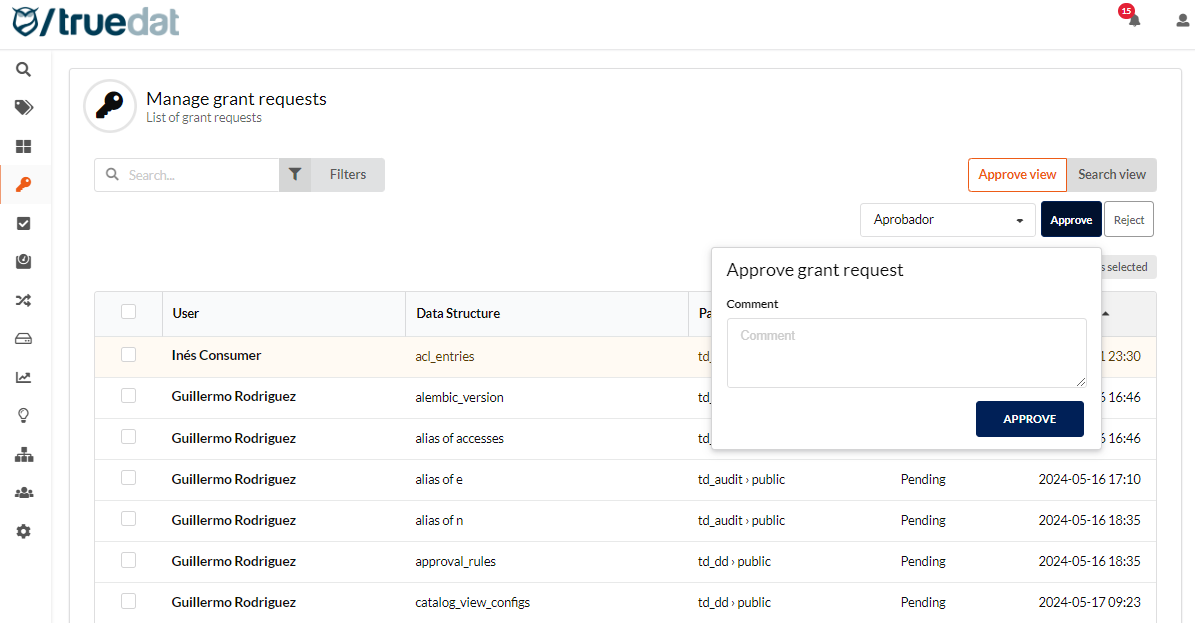
If you have a role with permission to approve or reject grant requests, you will have access to the menu option "Manage Grant Requests". On this screen, the "Approve View" lets you see grant requests that you are authorized to approve.

You can apply filters by user or by any data from the request or the structure's metadata. To approve or reject them, you can either select the requests to be approved or rejected from this list, or go to the grant request details, review them, and approve or reject them. If you have more than one role that can approve or reject grant requests, you will have to select the role you are using to approve or reject them.

If the grant request is rejected, the user who made the request will be notified in the notification system in Truedat and by email.

<figure><img src="/files/Q95VBkpALvwsjh9Iim86" alt=""><figcaption></figcaption></figure>

In this same screen, you can go to the Search view where you can search for grant requests already approved or rejected.

### Automate grant requests approvals

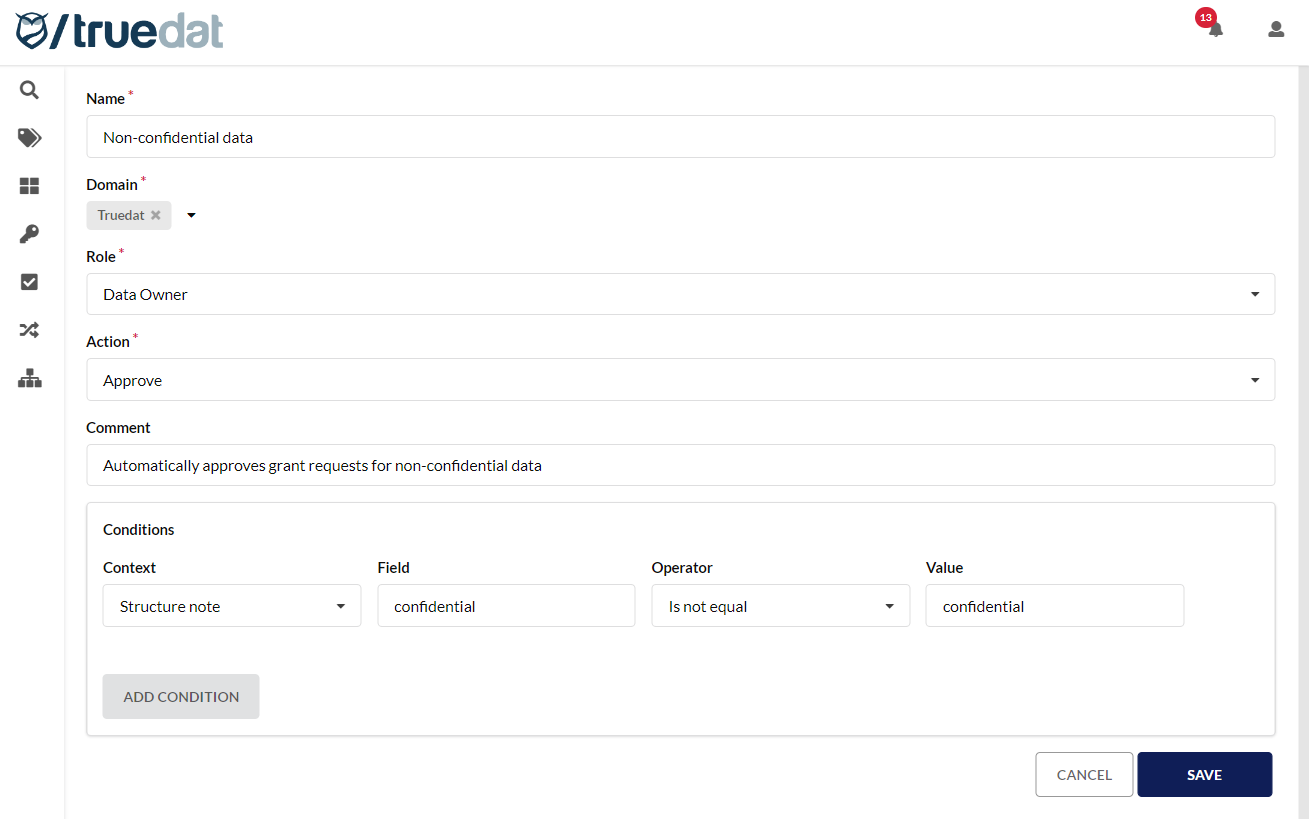
Grant requests can be automatically approved or rejected if they meet certain criteria. A user with permission to approve or reject grants can set up rules that will be checked when the grant request is submitted for approval. These rules will determine whether requests can be automatically approved or rejected or whether they have to go through the manual approval workflow.

In order to create a rule, go to "Grants" menu to the option "Approval Rules" and click on the "New Rule" button. The following information is required to create a rule:

* Name of the rule
* Domain where this rule is to be applied
* Role for which the approval or rejection will be automated
* Action to be taken if the rule is met: approve or reject
* Comment (optional)
* Conditions to be checked to determine whether the request can be automatically approved or rejected. It will validate whether a field is, or is not, equal to a certain value. This field can be from the request details, the structure's note, or the structure's technical metadata.
  * Context: Request metadata / Structure's note / Structure's metadata / Requester / Creator
  * Field:
    * Request metadata or structure's note: you must type the exact name of the field as defined in the Grants template or Data Catalog template (use the name, not the label).
    * Structure's metadata: type the name of the metadata field.
    * Requester or Creator: type either `user_name`, `email`, or `external_id`.
  * Operator: is equal to / is not equal to.
  * Value: value of the field.

<figure><img src="/files/rAVnKu7xFGBCkyhRUsXw" alt=""><figcaption></figcaption></figure>

## Access removal request

If you have been given access to a structure but would like to request its removal, you can do so in Truedat. Also, with the relevant permission, you can request the removal of another user’s access rights. These requests will then be sent to an external system for the actual removal, which will require integration with that system via APIs.

With the permission "Remove grant", the request will be submitted directly for action. If you do not have this permission, your request will have to be approved by a user with permission to "Approve grant request" before it is submitted.

#### Request grant removal

For your own access, you can go to the My Grants menu option. For another user's grant, go to the Grants menu option, search for the grant to be removed, then go to the grant details and click the Remove grant button.

If the request needs to be approved, because you do not have permission to "Remove grant", it will have to be approved by a user with permission to "Approve grants".

#### Approve grant removal requests

In the menu option "Approve grant requests", you will find not only requests for access, but also requests for access removal. Click on a request to go to its details and approve or reject it as appropriate. Requests that are approved will be submitted to the external system that manages access, and once access has been removed, the grant will be updated in Truedat with an expiration date to reflect that the access is no longer granted.

## Grant modification request

Once you have been granted access to a data structure, if you need to edit the grant, you will have to make a request to modify it. This request will go through the same approval workflow as new grant requests.

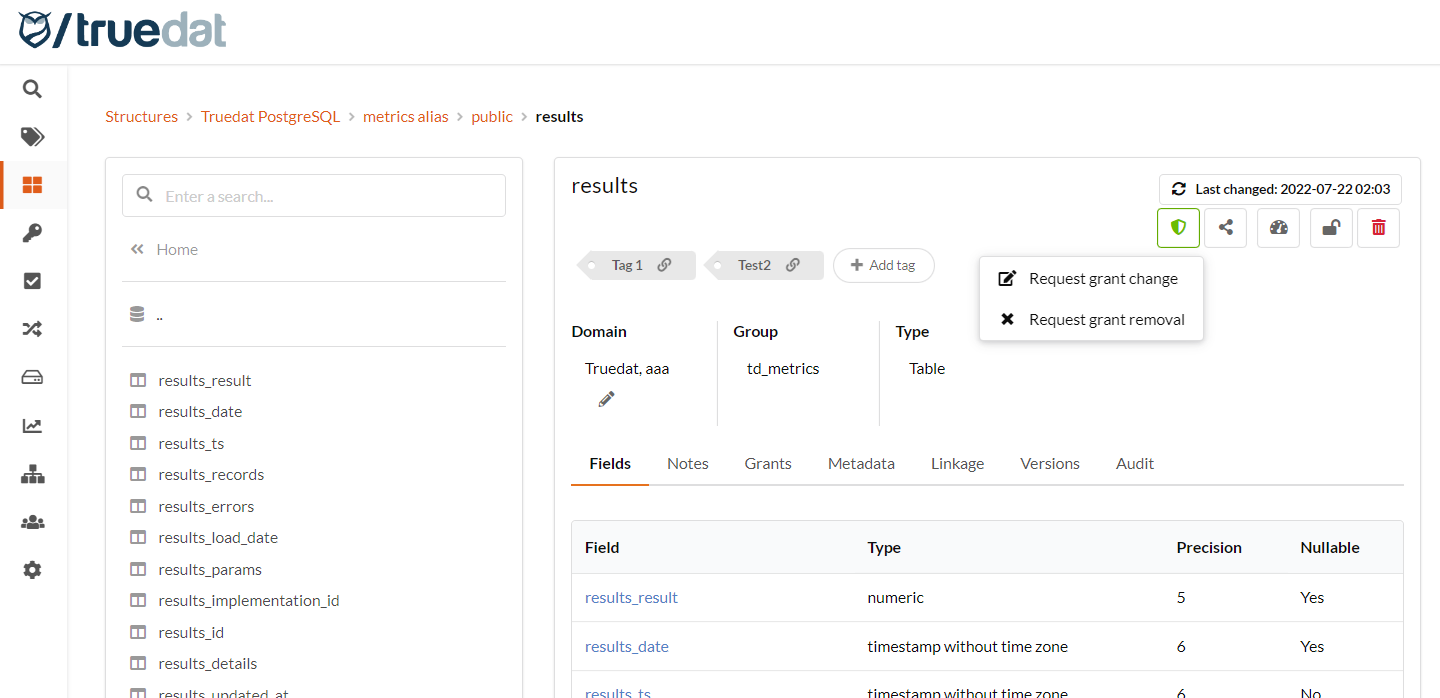
In the Data Catalog, go to the relevant structure, click on the Grants button <img src="/files/4nwX1q7xrMBoC45axYXL" alt="" data-size="line">, and select "Request grant change".

<figure><img src="/files/i40U947vLVR3FEmMQGaU" alt=""><figcaption></figcaption></figure>

You can also go to the "Structures grant requests" menu option in the Data Market module. Those with a green icon are the ones to which you have already been granted access, and you can request that the access be modified or removed.

Once the modification request is created, it will have to go through the approval workflow in the same way as a new grant request.

## Source systems integration

If there is a requirement to integrate this process with the source systems, a custom integration will need to be developed according to the installation requirements and architecture.